Physical Address
304 North Cardinal St.
Dorchester Center, MA 02124
Physical Address
304 North Cardinal St.
Dorchester Center, MA 02124

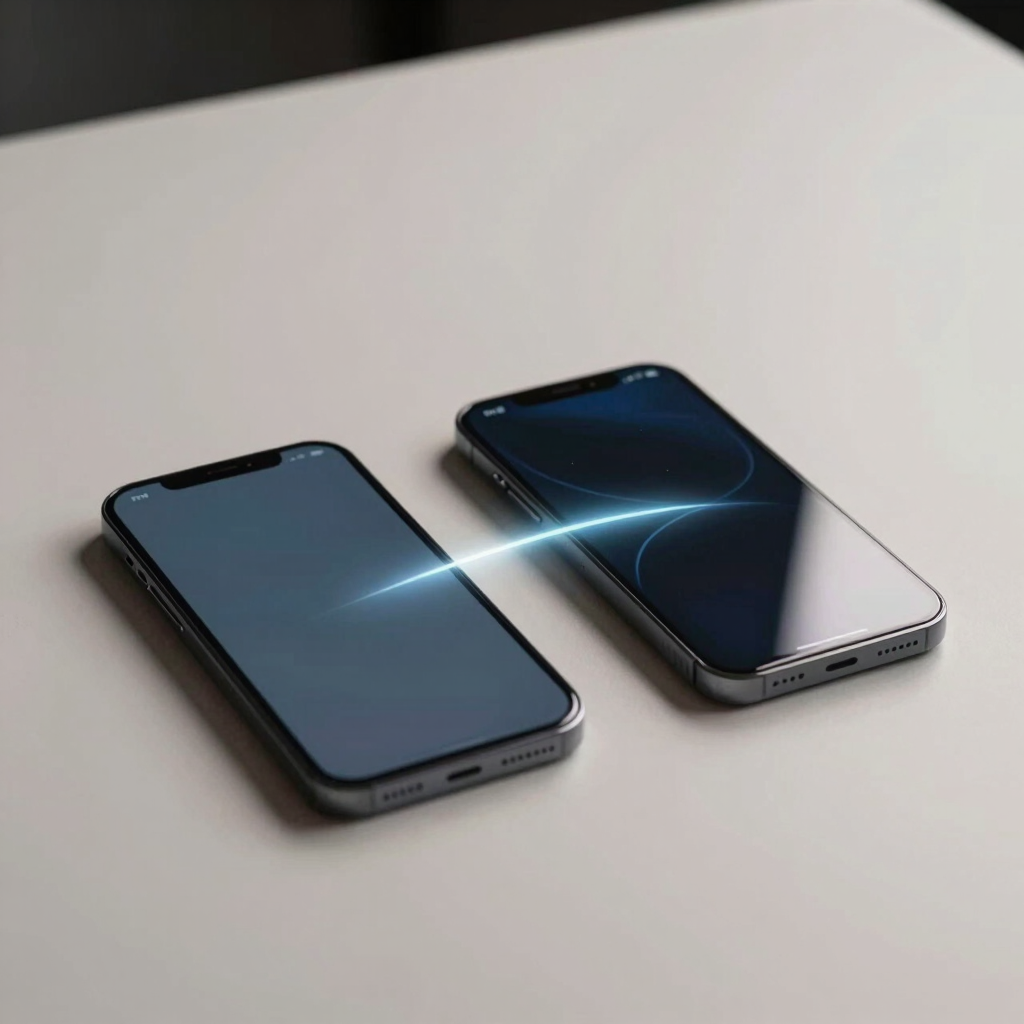
A new phone is exciting right up until you remember everything sitting on the old one. Years of photos, group chats, saved passwords, game progress — losing any of it during the switch is the real worry, not the setup screens themselves.
This guide walks through the safest way to move your data across, based on what phone you’re switching from and to, plus what to check before you wipe the old device for good.
A few minutes of prep avoids most transfer problems.
Every Android phone with Google Play Services includes a guided transfer as part of initial setup. It’s the method Google itself recommends, and it works between different brands because it’s built into core Android rather than tied to one manufacturer.
This one-time transfer generally can’t be repeated once you’ve finished setting up the phone, so it’s worth doing before you start customizing anything. Pixel 9, Pixel 9 Pro, and Pixel 9 Pro Fold owners are the exception: Google lets you reopen the same tool, called Android Switch, from Settings or the Play Store after setup. Most other Android phones don’t offer that option yet.
Not everything makes the trip the same way.
| Data Type | How It Moves | Notes |
|---|---|---|
| Contacts, calendar | Automatically, once signed in with your Google account | Usually the fastest part of the process |
| Photos and videos | Via Google Photos backup or the direct transfer | Confirm the backup has finished before wiping the old phone |
| Apps | Reinstalled from the Play Store | Individual sign-ins are often still required |
| App data (game progress, preferences) | Restored for apps that support Android’s backup system | Not universal — some apps still start from scratch |
| SMS and call history | Backed up and restored through your Google account | Now counts toward your Google storage quota as of mid-2026 |
| Saved passwords | Synced automatically if you use Google Password Manager | Other password managers need their own export or sync step |
| WhatsApp, Signal, Telegram chats | Not included in the standard Android transfer | Each app needs its own transfer method |
| Banking and authenticator apps | Rarely transfer automatically | Often need manual re-setup for security reasons |
Worth flagging: Google recently changed what counts against the free storage that comes with a Google account. New accounts now start with 5GB rather than 15GB unless a phone number is verified, and since mid-2026 the SMS, call history, and settings portion of an Android backup counts toward that quota too (the average increase is small, around 40MB). It’s a staged rollout, so check your storage under Google Account settings before relying on cloud backup for a large transfer.
If both the old and new phone are Samsung devices, Smart Switch handles brand-specific extras — like Secure Folder content and home screen layouts — that Google’s built-in tool doesn’t cover. It comes preinstalled on Galaxy phones, usually under Settings > Accounts and backup (or Cloud and accounts on older versions).
Wireless transfer:
A cable connection is slower to set up but noticeably faster for large libraries, and it’s the option Samsung recommends if you have a lot of data to move.
Google’s Android Switch app (previously called Switch to Android) handles the move from iOS. It transfers contacts, calendar events, photos, and videos over Wi-Fi. Music, notes, and text messages need a cable connection instead, since they can’t move over Wi-Fi.
Before starting, deregister iMessage on the iPhone so texts from iPhone users still reach your new Android number. WhatsApp chats aren’t included in this process — they need their own transfer step, covered below.
WhatsApp chats live outside your phone’s normal backup system, so they need their own transfer regardless of which method you used above.
Same-phone QR transfer (Android to Android, fastest option):
Restore from a cloud backup:
Either method replaces any chat history already on the new phone, and payment history and call logs don’t carry over either way.
Only do this once you’re confident everything you need is on the new phone.
A factory reset erases everything and can’t be undone, so skip step 4 until you’ve genuinely confirmed the transfer.
Work through these roughly in order.
For the wireless method, yes. A cable connection works without Wi-Fi, but you’ll still need it briefly to sign in and download apps.
Usually not without a factory reset. Pixel 9 series phones are the exception, since Google lets you reopen the Android Switch tool later.
No. The transfer only copies data — nothing is removed from the old phone until you factory reset it yourself.
Use WhatsApp’s own transfer option: the QR code method between two Android phones, or restoring from a Google Drive backup during setup.
Google’s built-in transfer works across brands because it’s part of core Android. Manufacturer tools like Smart Switch add extra features but aren’t required for a cross-brand move.