Physical Address
304 North Cardinal St.
Dorchester Center, MA 02124
Physical Address
304 North Cardinal St.
Dorchester Center, MA 02124

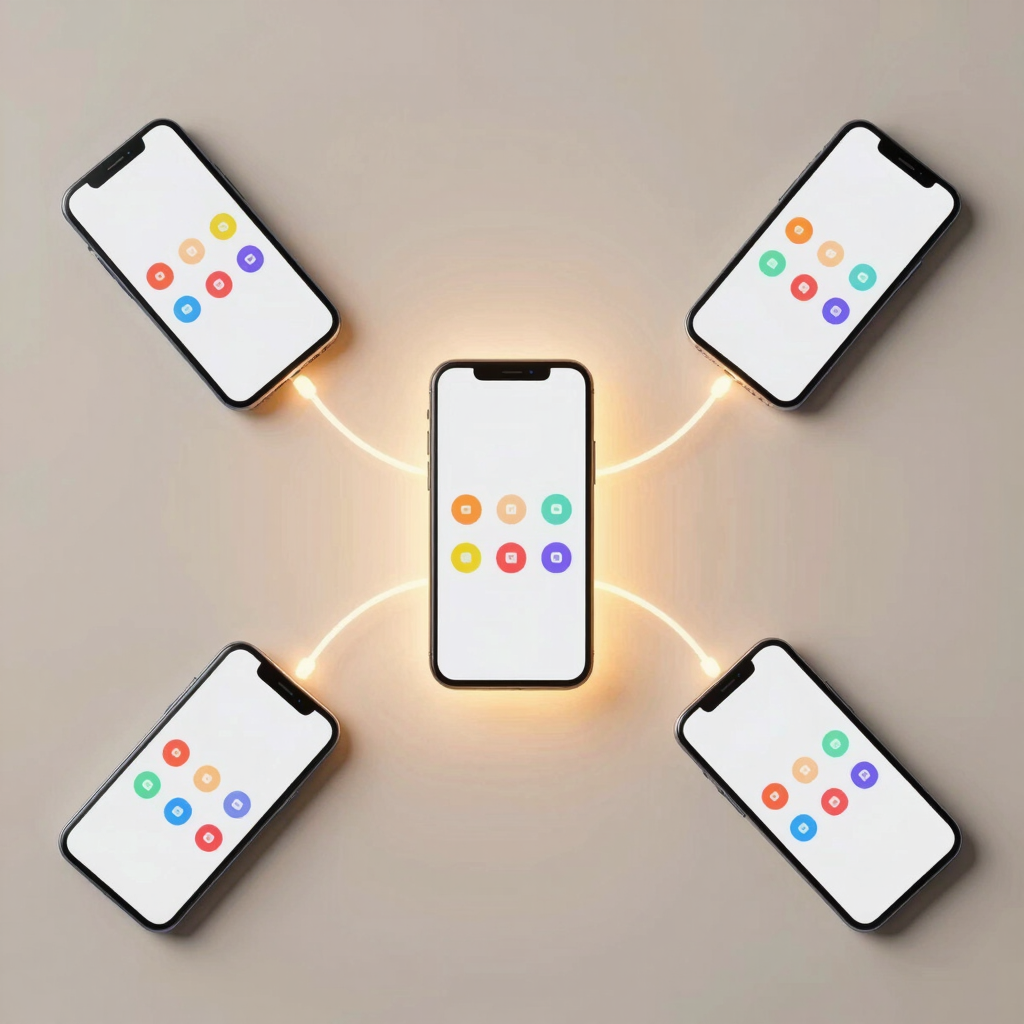
Buying the same app twice for two phones under one roof is money down the drain. Google Play Family Library fixes exactly that: pay for something once, and up to five other family members can use it too, at no extra cost.
This guide covers the full setup on Android — creating a family group, adding a payment method, inviting members, and turning on sharing for individual purchases — plus what the feature leaves out and how to fix the problems that come up most often.
Family Library covers content that’s already been paid for on Google Play:
Paid apps and games
Movies and TV shows
E-books and audiobooks
Not every paid app qualifies automatically. Developers have to opt their app or game into family sharing, so a small number of paid titles stay unshareable even after setup is done. When a purchase is eligible, its details page shows a Family Library icon.
Content Type Shareable? Notes
Paid apps & games Usually Developer must enable sharing for that title
Movies & TV shows Yes Bundles share as a whole, not title by title
E-books & audiobooks Yes —
Subscriptions No These use their own separate family plans
In-app purchases & in-game currency No Tied to the account that bought them
Free apps Nothing to share There’s no purchase to add to the library
A personal Google Account for every member — work or school accounts can’t join a family group
A valid credit or debit card for the family manager to set as the family payment method; gift cards and mobile carrier billing don’t qualify as the card itself
Everyone registered in the same country as the family manager
Room in the group: one manager plus up to five other members
A Family Link supervised account for any child under 13, or the minimum age set for their country
Two of these points matter more for readers in Pakistan than the rest of the list. First, the card requirement: JazzCash, Easypaisa, and mobile balance can’t act as the family payment method, so the manager needs a bank-issued credit or debit card that Google Play accepts. Second, the same-country rule: many Pakistani households have relatives in the Gulf, the UK, or elsewhere, and those members can’t join the same Play Store family group even though they can still use unrelated shared services like a Google One plan.
Open the Google Play Store app.
Tap your profile icon in the top-right corner.
Tap Settings, then Family.
Tap Sign up for Family Library.
If you’re not already in a family group, follow the on-screen prompts to create one — you’ll automatically become the family manager.
Tap your profile icon, then Payments & subscriptions.
Tap Payment methods, then Change family payment method.
Select or add a credit or debit card and confirm.
Only the family manager can add, change, or remove this card.
From the Family screen, tap Add member (labeled Invite on some Play Store versions).
Search a contact or type their Gmail address directly.
Send the invite and wait for them to accept it on their own device.
Once everyone has joined, eligible past and future purchases can start showing up across the group.

Open the Play Store app and tap your profile icon.
Tap Manage apps & devices, then Installed.
Select the app, game, book, or movie in question.
On its details page, turn on Family Library.
Repeat this for anything better kept private — switching the toggle off removes it from the shared pool without deleting it from your own account.

Family Library only ever covers one-time purchases, so a few things stay outside it no matter how it’s set up:
Subscriptions — Google One, YouTube Premium, and most in-app subscriptions run on their own separate family plans instead of Family Library
In-app purchases — coins, gems, unlocked levels, and similar extras stay tied to the account that bought them
Refunded purchases — refunding a shared item pulls it from every member’s library right away
Content from someone who leaves the group — if the original buyer leaves the family group, everyone else loses access to whatever they had shared
An app has no Family Library toggle. The developer hasn’t enabled sharing for that title. There’s no fix on the reader’s end beyond checking back later or contacting the developer directly.
“Your family payment method is invalid.” The manager’s card has expired or been declined. Updating it under Payment methods restores automatic sharing; anything bought while the card was invalid still needs to be added manually afterward.
Can’t add someone to the family. Confirm they’re using a personal Google Account, are registered in the same country as the manager, and aren’t already part of another family group — one Google Account can only belong to a single family at a time.
Content disappeared without warning. Check whether it was refunded or whether the member who originally shared it left the group. Both remove access for everyone at once.
Up to six accounts total — one family manager plus five other members.
No. Everyone in the family group has to be registered in the same country as the manager.
No. It only covers one-time purchases like paid apps, games, movies, e-books, and audiobooks. Subscriptions and in-app purchases need their own separate plans.
No. Setting up and using Family Library is free — the only cost is whatever content you choose to buy and share.
Anything you shared stops being available to the rest of the group, and you lose access to whatever they had shared with you.