Physical Address
304 North Cardinal St.
Dorchester Center, MA 02124
Physical Address
304 North Cardinal St.
Dorchester Center, MA 02124

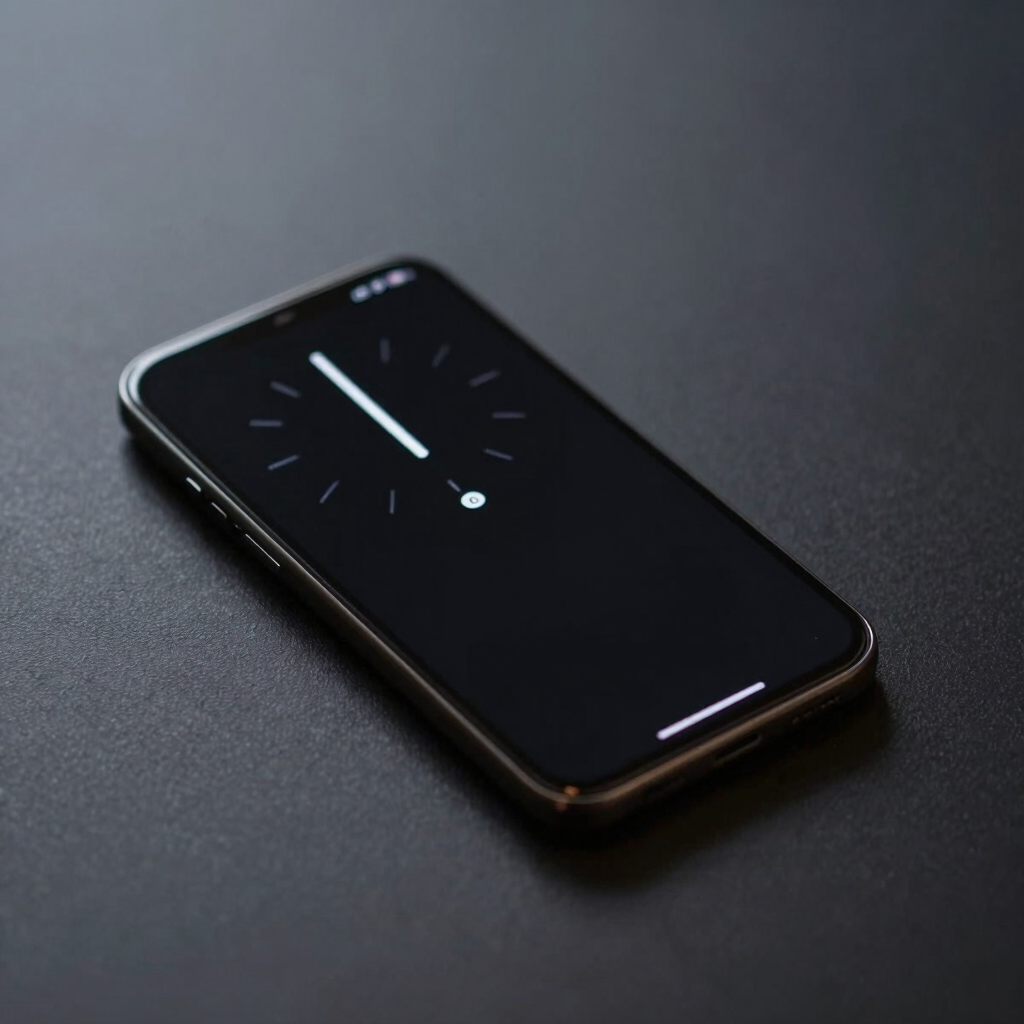
Always-On Display looks completely different depending on which Android phone you own, and that trips up a lot of people who switch brands. Someone moving from a Galaxy to a Pixel, or from a Redmi to almost anything else, often can’t find the customization menu they’re used to, because it isn’t in the same place, and on some phones a few of the old options don’t exist anymore. This guide covers exactly what you can change and where to find it, phone by phone.
Every phone maker mentioned below is referenced only to point you to the right settings menu. apkboy.online isn’t affiliated with Samsung, Google, Xiaomi, or any other brand covered here.
| Phone Brand | Settings Path | Clock Style Location |
|---|---|---|
| Samsung, One UI 6.1 or newer | Settings > Lock screen and AOD > Always On Display | Press and hold the lock screen (after enabling “Touch and hold to edit”) |
| Samsung, One UI 6.0 or older | Settings > Lock Screen > Always On Display | Clock Style option in the same menu |
| Google Pixel / near-stock Android | Settings > Wallpaper & style > Lock screen | Tap Clock, then swipe through styles |
| Xiaomi, Redmi, POCO (HyperOS) | Settings > Display > Always-On Display | Tap Change style |
| Infinix, Tecno, vivo, Oppo | Settings > Display (varies by model) | Search “always” in Settings if it isn’t visible |
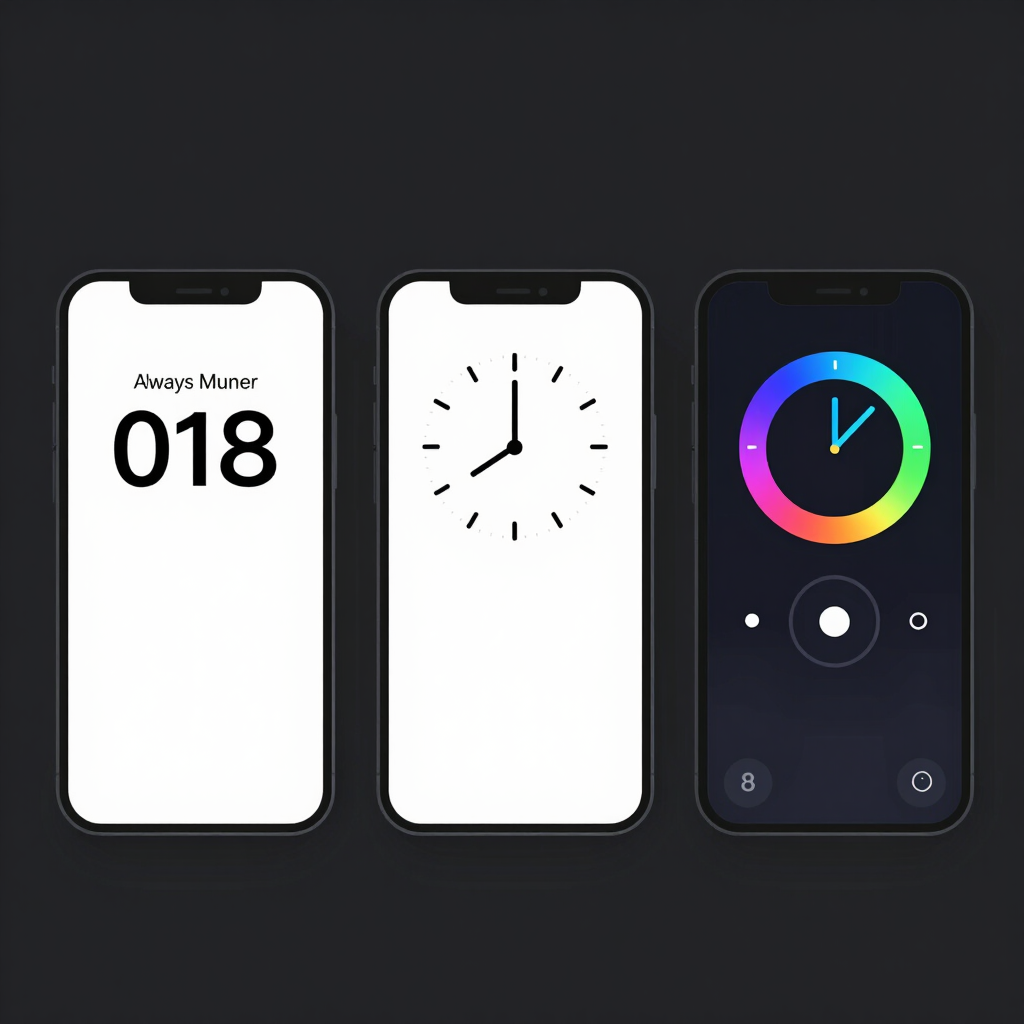
Most phones let you adjust some combination of the clock’s font or style, its color and size, and what shows alongside it: notification icons, media controls, or battery percentage. You can usually also set a display schedule, such as Always On, Tap to Show, a scheduled time range, or “show only for new notifications.” A handful of phones go further and let you use a custom photo or an artistic pattern instead of a plain clock.
One thing that’s rarely adjustable is brightness — the always-on screen typically dims automatically based on ambient light, with only a simple on/off toggle for that auto-adjustment.
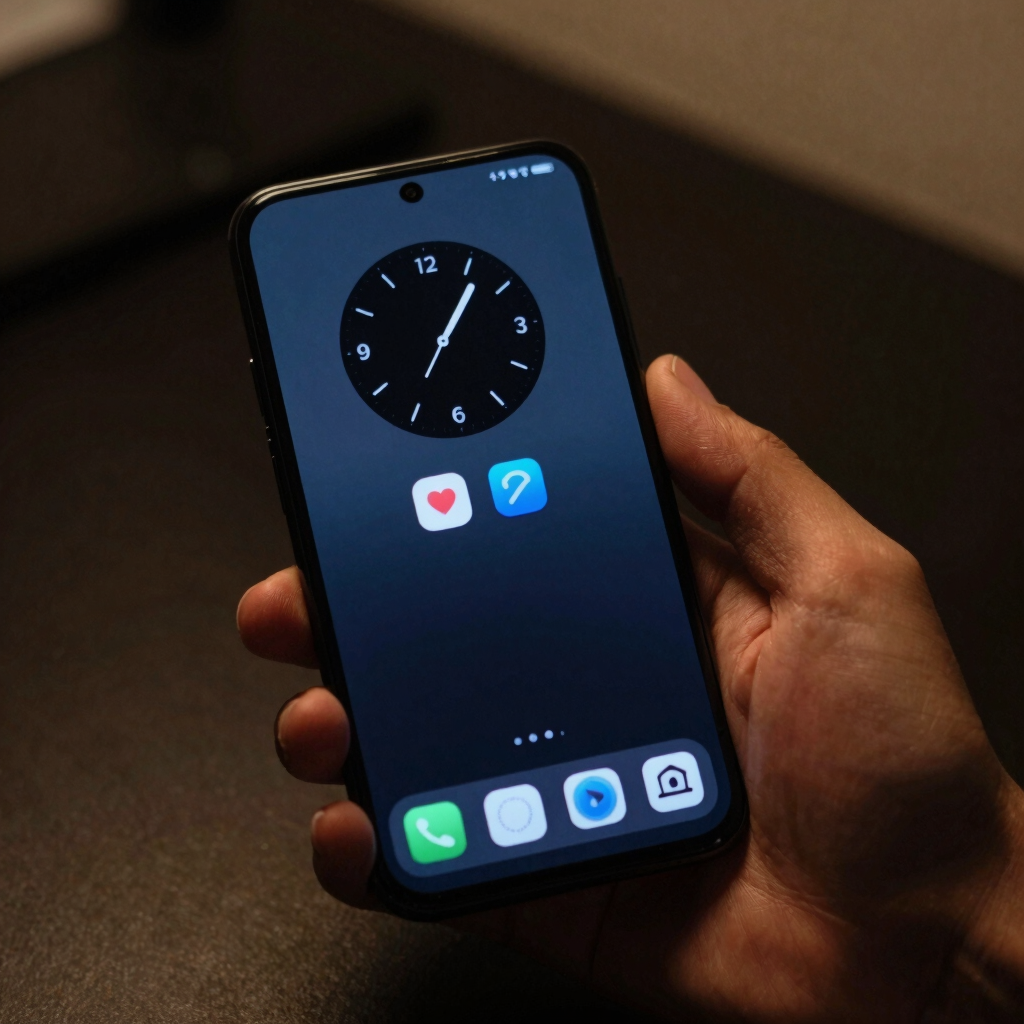
The exact steps depend on your One UI version, which catches a lot of long-time Galaxy owners off guard.
If your phone runs One UI 6.1 or newer (most current Galaxy S, Z, and A series devices), Samsung merged the always-on screen into the lock screen. Go to Settings > Lock screen and AOD > Always On Display to set when it appears — Tap to show, Show always, Show as scheduled, or Show for new notifications — along with toggles for Show Now bar and Show Lock screen wallpaper. To change the clock’s actual look, position, or size, you do it from the lock screen itself: turn on Touch and hold to edit under Settings > Lock screen and AOD, then press and hold the lock screen, select the clock, and drag or resize it. Whatever you set here carries over to the always-on screen automatically.
On One UI 6.0 and earlier, the dedicated Clock Style option is still inside Settings > Lock Screen > Always On Display, where you can also apply a custom photo or GIF directly.
Pixel and other near-stock phones keep things simpler, though the menu has moved over recent Android versions. Open Settings > Wallpaper & style > Lock screen, tap Clock, and swipe through the available styles. Tap Clock color and size to fine-tune how it looks — this same style shows up on the always-on screen too.
For the always-on behavior, check Settings > Display > Lock screen and turn on Always Show Time and Info, or pick “Show only when you tap or pick up the phone” to save battery. You can also toggle whether the clock switches to a larger double-line format when nothing else is on screen, and whether notification icons or media controls appear next to it.
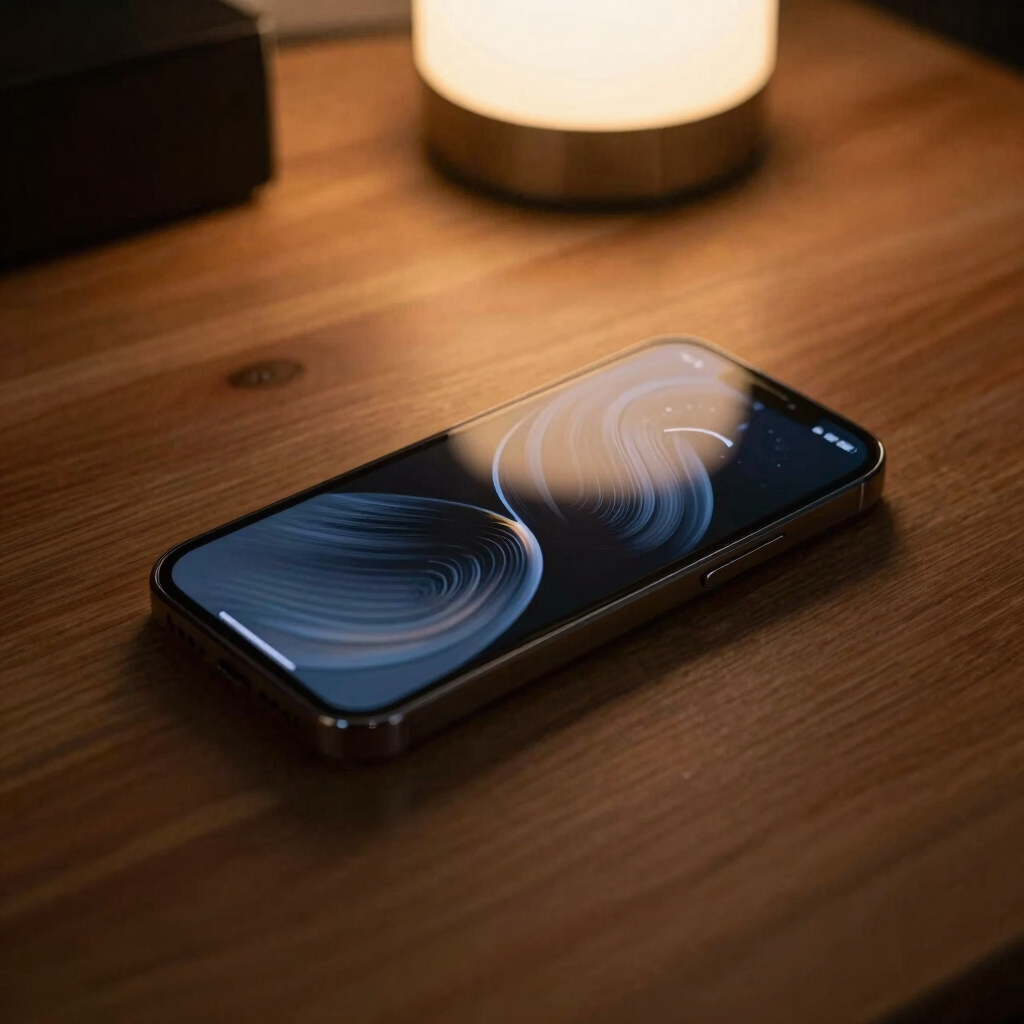
Go to Settings > Display > Always-On Display, then tap Change style to choose between a plain clock, a clock with notification icons, a decorative artistic pattern (a few extra designs live inside the Themes app), or, on HyperOS 2 and newer, a custom photo. Below the style picker, the Schedule setting lets you pick Always on, a custom start and end time, or Tap to show.
Worth knowing: Always-On Display only works on AMOLED panels. A number of budget Redmi and POCO models use LCD screens, which can’t power individual pixels independently, so those models don’t offer a true AOD regardless of software version.
These brands cover a big share of Pakistan’s budget and mid-range Android market, and each handles AOD a little differently — usually under Settings > Display > Always-On Display or a broader Lock Screen & Personalization menu. The clock styles on offer, and how many you get, vary by model and software version, so rather than guess at menu names that might not match your exact phone, the fastest route is to open Settings and search “always.” Nearly every Android skin’s search bar jumps straight to the right page, even when it’s buried a few screens deep.
Always-On Display is built to sip power rather than drain it. On an AMOLED panel, pixels showing black stay switched off, so only the clock and icons themselves draw current. Even so, running it around the clock adds up over a full day, which is why every phone above offers a schedule. Setting AOD to your actual waking hours, or switching to “Tap to show” if you rarely glance at a locked phone, is the simplest way to claw back battery life without giving up the feature.
Screen burn-in, a faint permanent ghost of a static image, is the other common worry, and it’s a smaller risk than it used to be. Modern AOD implementations run at low brightness, use thin fonts instead of bold blocks of light, and on many phones nudge the clock’s position by a pixel or two at intervals to spread out wear. It isn’t zero risk if you leave one bright, unchanging layout on screen for years, but for normal daily use it isn’t something to lose sleep over.
If you’ve gone looking for Always-On Display and can’t find it anywhere in Settings, the screen itself is the likely reason. AOD depends on an OLED or AMOLED panel, where each pixel lights up independently and can switch off completely. Plenty of budget and lower-mid-range Android phones, including many LCD-screen models sold in Pakistan, don’t have the hardware for it, and no software update can add a true AOD to an LCD panel.
If your phone does have AMOLED but no built-in AOD, a dedicated always-on display app from the Play Store can add the feature, with its own clock styles, icons, and scheduling. Since these apps run constantly in the background, check their battery usage in Settings after installing one, and stick to apps with a solid track record of updates and reviews.
One UI 6.1 merged the always-on screen with the lock screen, so clock customization moved out of the dedicated AOD menu and into the lock screen editor. Enable “Touch and hold to edit” under Lock screen and AOD, then press and hold the lock screen to adjust it.
Not much on an AMOLED screen, since black pixels stay off and only the clock and icons draw power. Scheduling AOD to specific hours or using a tap-to-show mode reduces that small drain further.
On some phones, yes. HyperOS 2 and certain older Samsung models (One UI 6.0 and earlier) support a custom photo AOD. Most current Samsung and Pixel phones don’t offer this directly through settings.
It’s unlikely with normal daily use. Modern AOD renders at low brightness, and many phones shift the clock’s position slightly over time to prevent uneven wear. The real risk comes from leaving one bright, unchanging image on screen for years.
Check whether your screen is AMOLED/OLED or LCD; LCD panels can’t support true AOD. If your screen is AMOLED but has no built-in AOD, a Play Store app can add the feature.