Physical Address
304 North Cardinal St.
Dorchester Center, MA 02124
Physical Address
304 North Cardinal St.
Dorchester Center, MA 02124

A new phone is exciting right up until you remember everything sitting inside WhatsApp on the old one. Years of family group chats, work conversations, and photos don’t live on WhatsApp’s servers — they live on your device. Move to a new phone the wrong way, and that history can be gone for good.
The good news is that WhatsApp now has an official way to carry chats over in almost every situation, whether you’re staying on Android, switching to an iPhone, or going the other way. Here’s exactly which method fits your move, and how to avoid the mistakes that actually cause data loss.
WhatsApp messages are end-to-end encrypted and stored locally on your phone, not in a central WhatsApp inbox you can just log into from anywhere. To move that history, you need either a backup or a direct device-to-device transfer.
Also Read:
This is also why switching between Android and iPhone is trickier than staying on the same platform. Android backs up to Google Drive, while iPhone backs up to iCloud, and one can’t simply read the other’s backup. Cross-platform moves need a different tool entirely.
Moving from → to Best method Android → Android Direct Wi-Fi transfer, or restore from Google Drive
backup iPhone → iPhone Direct Wi-Fi transfer, or restore from iCloud backup Android → iPhone Apple’s
Move to iOS app iPhone → Android WhatsApp’s built-in “Transfer chat history”
A few minutes of prep prevents most transfer problems.
Use the exact same phone number on the new device — chats can’t move to a different number.
Update WhatsApp to the latest version on both phones before you begin.
Don’t activate or verify WhatsApp on the new phone until you’re ready to transfer or restore.
Keep both phones charged, or plugged in, for the whole process.
Check the new phone has enough free storage for your chat history and media.
Don’t delete WhatsApp or wipe the old phone until you’ve confirmed everything shows up correctly on the new one.
If you want extra peace of mind, take a manual backup (Google Drive or iCloud) as a safety net even if you plan to use the direct transfer instead.
Direct transfer over Wi-Fi (recommended)
This moves chats phone-to-phone without touching the cloud, so there’s no Google Drive storage limit to worry about.
On your old Android phone, open WhatsApp and go to Settings > Chats. Look for Chat transfer or Transfer Chats (the exact label depends on your WhatsApp version).
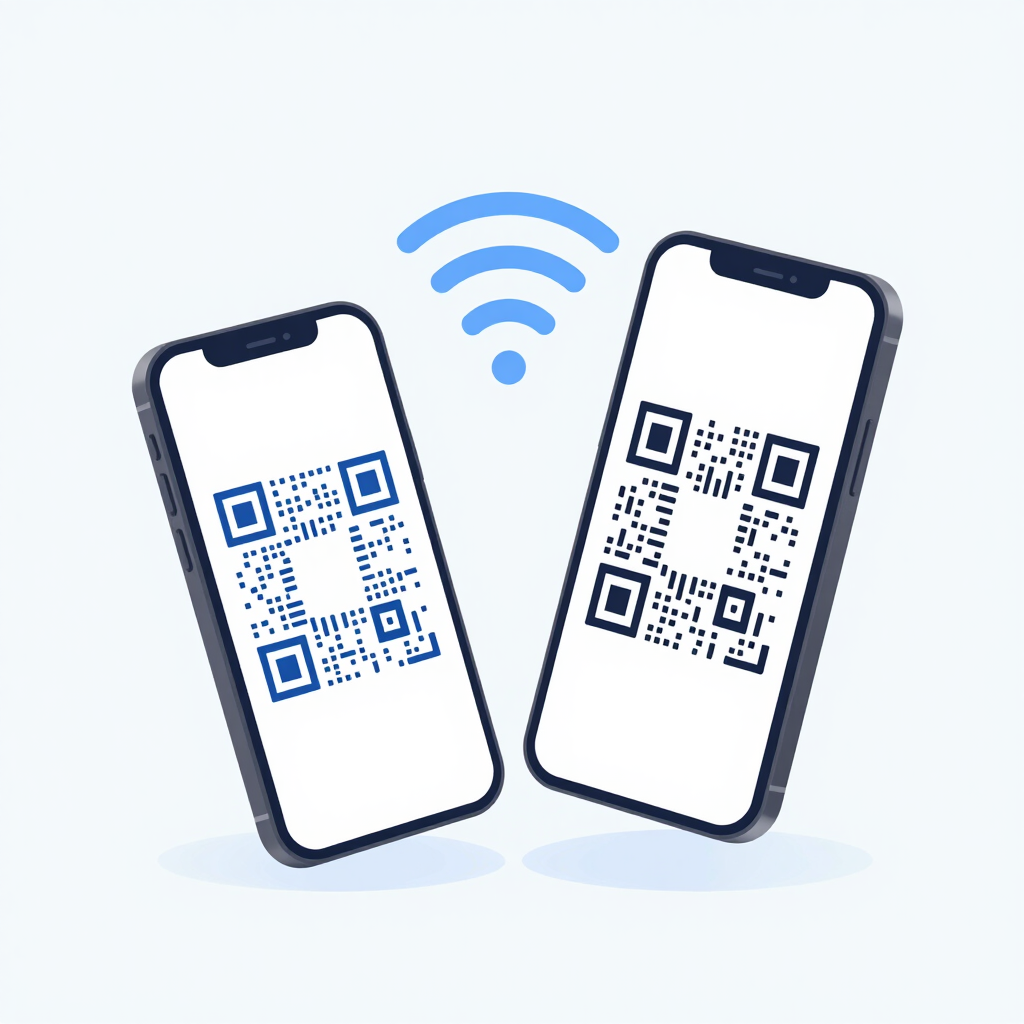
On your new phone, install WhatsApp and verify it with the same number. When you reach the chat transfer screen, it will generate a QR code.
On the old phone, tap Start on the chat transfer option, then scan the QR code shown on the new phone.
Keep both phones close together and connected until the transfer bar finishes, then tap Next on the new phone.
Restoring from a Google Drive backup instead
On the old phone, go to Settings > Chats > Chat backup and tap Back Up Now. On the new phone, install WhatsApp, verify your number, and tap Restore when prompted.
One thing worth knowing: WhatsApp backups on Android now count against your free 15GB Google Drive storage, the same way they’ve always counted against iCloud storage on iPhone. If your Drive is nearly full, the direct Wi-Fi transfer above is the more reliable option.
Direct transfer over Wi-Fi (recommended)
On your old iPhone, open WhatsApp, tap Settings (bottom right), then Chats > Chat Transfer, and tap Start.
Set up WhatsApp on the new iPhone with the same phone number. When it reaches the transfer step, it will show a QR code.
Use the old iPhone’s camera to scan that QR code and confirm the transfer.
Keep both phones nearby until the progress bar completes.
Restoring from an iCloud backup instead
On the old iPhone, go to Settings > Chats > Chat Backup and tap Back Up Now, making sure iCloud is signed in. On the new iPhone, install WhatsApp, verify your number, and tap Restore Chat History when it’s offered.
Also Readd: How to Hide Apps From Your App Drawer (Android & iPhone)
This direction uses Apple’s Move to iOS app, and it comes with one hard requirement: the iPhone has to be brand new or freshly factory reset, sitting at the initial “Apps & Data” setup screen. There’s no way around this with the official method — if the iPhone is already set up with data you want to keep, you’d need a paid third-party tool instead (more on that below).
On the Android phone, install Move to iOS from the Play Store.
On the new iPhone’s setup screen, choose Move Data from Android, then Continue. A code appears on the iPhone.
Enter that code on the Android phone to create a temporary Wi-Fi connection between the two devices.
On the Transfer Data screen, select WhatsApp, then tap Start on the Android phone.
WhatsApp will prepare your chat history for export. Once it’s done, tap Next to return to Move to iOS, then tap Continue on the iPhone.
Wait for the progress bar to finish on the iPhone — this can take a while for large chat histories. Don’t use either phone during this step.
Finish setting up the iPhone, install WhatsApp from the App Store, and verify it with the same number your Android phone used.
Your Android device should be running Android 5.0 or newer — in practice, almost any phone made in the last decade qualifies.
WhatsApp added a direct, cable-free way to do this: Transfer chat history, which moves everything over a local Wi-Fi connection. According to WhatsApp’s own rollout notes, it works on Android 10 or newer and doesn’t require resetting the Android phone first.
On the iPhone, open WhatsApp and go to Chats > Transfer chat history > Transfer to Android, then tap Continue. Allow camera access and keep the iPhone unlocked.
On the Android phone, open WhatsApp and verify your account using the same phone number as the iPhone.
Tap Allow to let the two devices connect. A QR code appears on the Android phone.
Scan that code with the iPhone’s camera, then tap Join to connect over Wi-Fi and start the transfer.
When it finishes, tap Next on the Android phone to open your chats.
If your phone doesn’t have this option yet, some newer Samsung and Pixel devices offer an older, cable-based version of this during initial setup, under Copy apps and data > Copy from iPhone, which uses a USB-C-to-Lightning cable instead of Wi-Fi.
A practical tip: if there’s no shared Wi-Fi network available, you can usually turn one phone into a personal hotspot — both transfer methods just need a local wireless connection, not actual internet access.
Cross-platform moves bring over your chats, media, and group conversations, but a few things stay behind on both directions:
Call history
Status updates and your WhatsApp display name
Peer-to-peer payment messages
Media received through WhatsApp Channels
Cross-platform transfer is also limited to personal WhatsApp accounts — WhatsApp Business chats currently can’t move between Android and iPhone this way.
Work through these in order before starting over from scratch.
Keep both phones close together, powered, and on the same network. Switching Wi-Fi networks or letting a phone lock mid-transfer is the most common cause of a stalled transfer.
Check storage on the receiving phone. A transfer will stall or fail if there isn’t enough free space for your chat history and media.
Confirm both apps are fully updated before retrying — a version mismatch between the two phones is a frequent culprit.
Grant local network and camera permissions when prompted; a declined permission is easy to miss and will quietly block the QR-based methods.
Restart the transfer completely rather than resuming it. WhatsApp can’t merge chats from a half-finished transfer with a fresh account, so a stuck transfer needs to begin again from step one.
Fall back to a cloud backup or a licensed third-party transfer tool if the official method keeps failing after several attempts — this applies mainly to Android-to-iPhone moves where the iPhone can’t be reset.
Whatever you do, don’t uninstall WhatsApp or wipe the old phone until you’ve confirmed every chat you care about is present and readable on the new one.
No. Chats can only move to the same phone number. If you’re also changing numbers, change the number on your old phone first through WhatsApp’s own number-change tool, then transfer the chats afterward.
You need Wi-Fi turned on, on both phones, but not necessarily an active internet connection — the transfer runs over a local wireless link between the two devices.
It depends on the method. Cloud restores and cross-platform transfers typically sign the old device out once the new one is verified. Either way, don’t delete the app or its data until you’ve double-checked the new phone.
Not usually, as long as you haven’t deleted anything from the old phone. A failed transfer just means starting the process again — WhatsApp doesn’t remove the source data until the transfer is confirmed complete.
No, cross-platform transfer currently only supports personal WhatsApp accounts.