Physical Address
304 North Cardinal St.
Dorchester Center, MA 02124
Physical Address
304 North Cardinal St.
Dorchester Center, MA 02124

A slow old Android phone often feels worse than it is, because each screen change plays an animation first. Changing three hidden Developer options to 0.5x shortens that wait for free. This guide covers the steps, a no-Developer-options alternative, and the habits that help most.
The trick is not an app, a cleaner, or a factory reset. It is a set of three hidden settings that control how long Android’s animations play. Set them to 0.5x, and every window, menu, and screen change finishes in half the time.
The hardware stays the same. The waiting shrinks. This guide covers the exact steps, what each setting does, and what the trick can’t fix.
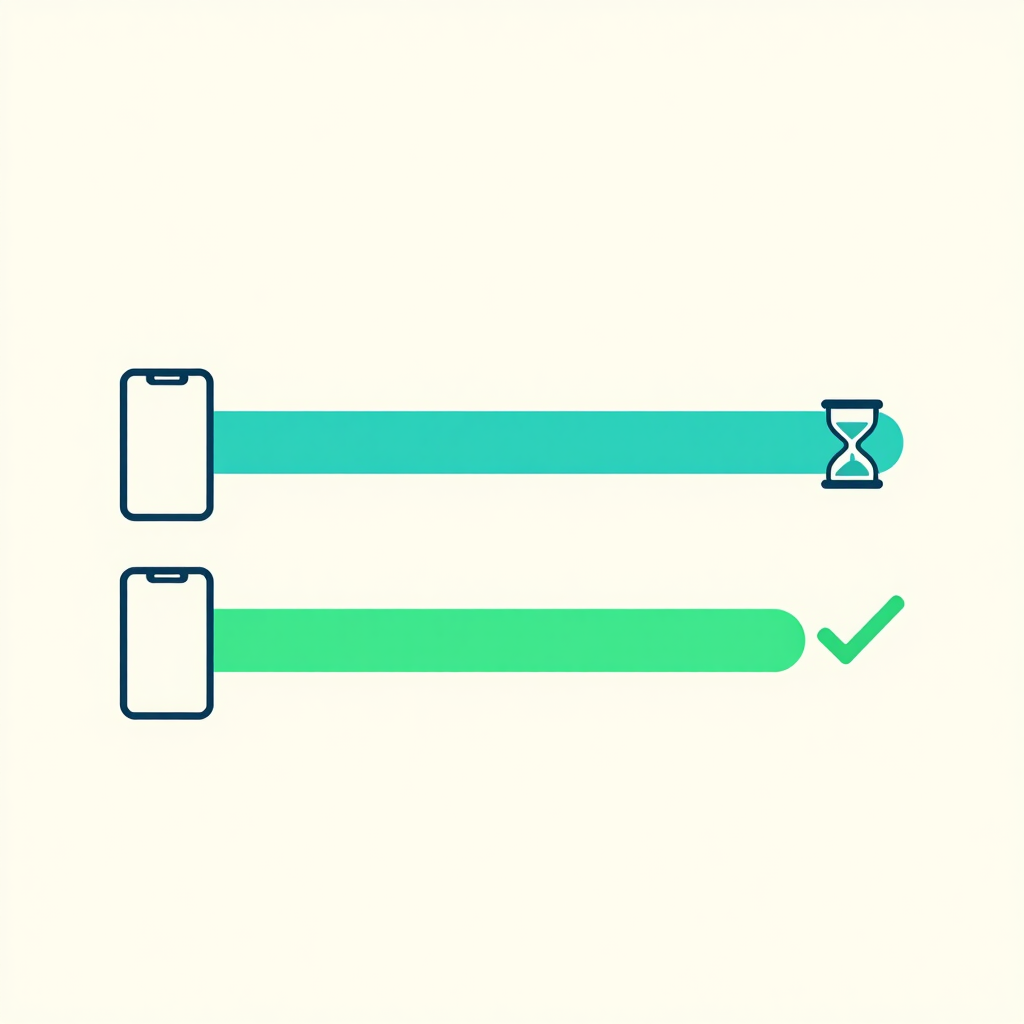
Every time you open an app, close a menu, or switch screens, Android plays a short animation first. At the default 1x setting, a window opening animation or transition lasts around 300 milliseconds. That is about a third of a second. You barely notice it once, but it repeats across hundreds of taps a day.
On a new phone, animations look smooth and the pause feels natural. On an older phone with a slower processor, they can stutter, and the pause becomes more obvious. Animations can even add to lag when the phone is short on resources.
Shortening them does not make the processor faster. It removes some of the waiting, so menus and screens appear sooner, and it lightens the load slightly on the CPU and GPU of lower-spec phones. The phone doesn’t do more per second. It just stops making you sit through the show.
Turn on Developer options, then change three animation settings from 1x to 0.5x. At 0.5x, those animations run twice as fast. Smaller numbers mean faster animations.
| Setting | What it controls | Default | Try |
|---|---|---|---|
| Window animation scale | Windows and pop-ups opening and closing | 1x | 0.5x |
| Transition animation scale | Moving between screens and apps | 1x | 0.5x |
| Animator duration scale | Most other animations in the system and apps | 1x | 0.5x |
The animator setting covers nearly every animation not handled by the other two. Changing all three gives the most consistent result.
Developer options holds advanced settings meant for app developers. Change only the three animation settings below and leave everything else as it is.
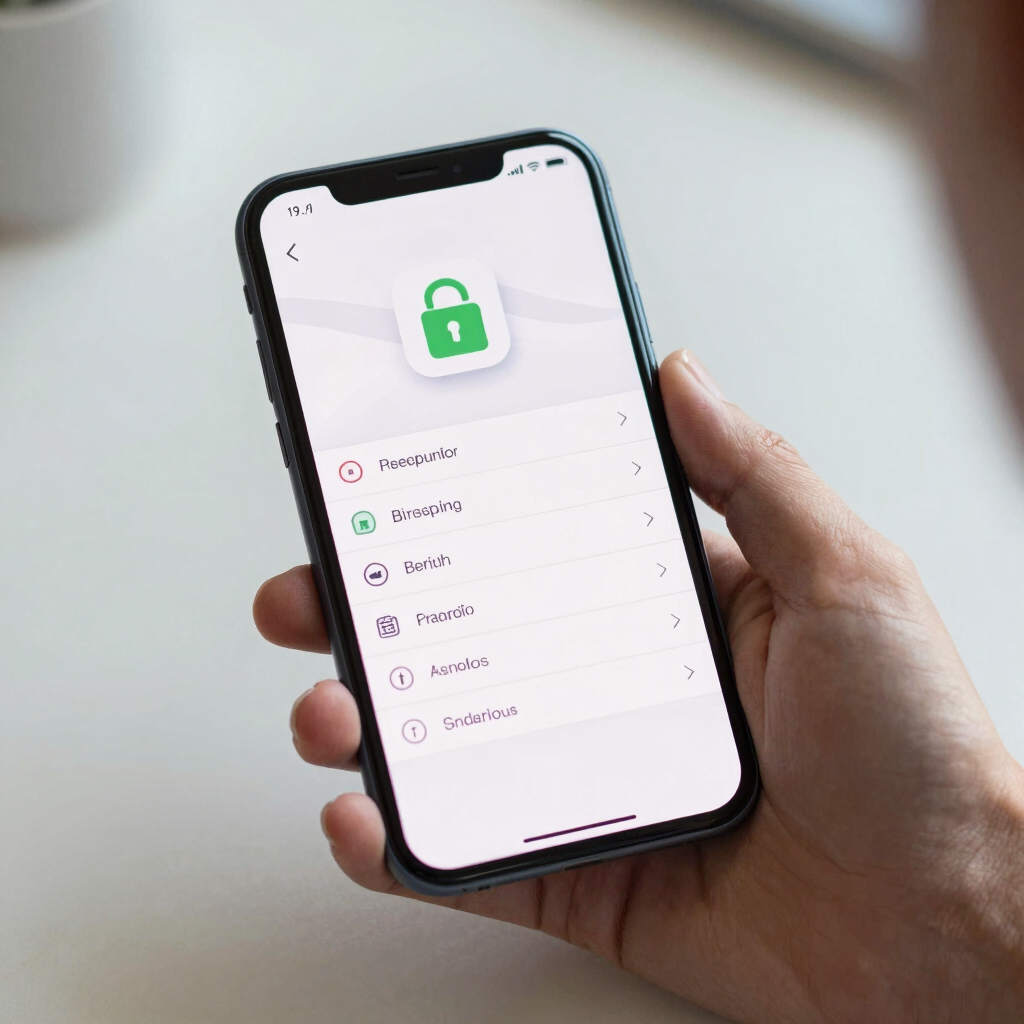
Where the Build number sits depends on your phone brand and Android version.
| Phone type | Where to tap | Where Developer options appears |
|---|---|---|
| Google Pixel and near-stock Android | Settings > About phone > Build number | Settings > System > Developer options |
| Samsung (One UI) | Settings > About phone > Software information > Build number | Near the bottom of the main Settings list |
| Xiaomi, Redmi, POCO | Settings > About phone, then tap the MIUI version or OS version entry | Settings > Additional settings > Developer options |
Other brands follow a similar pattern, but menu names vary. If you can’t find Build number, look for a Version or Software information page inside About phone.
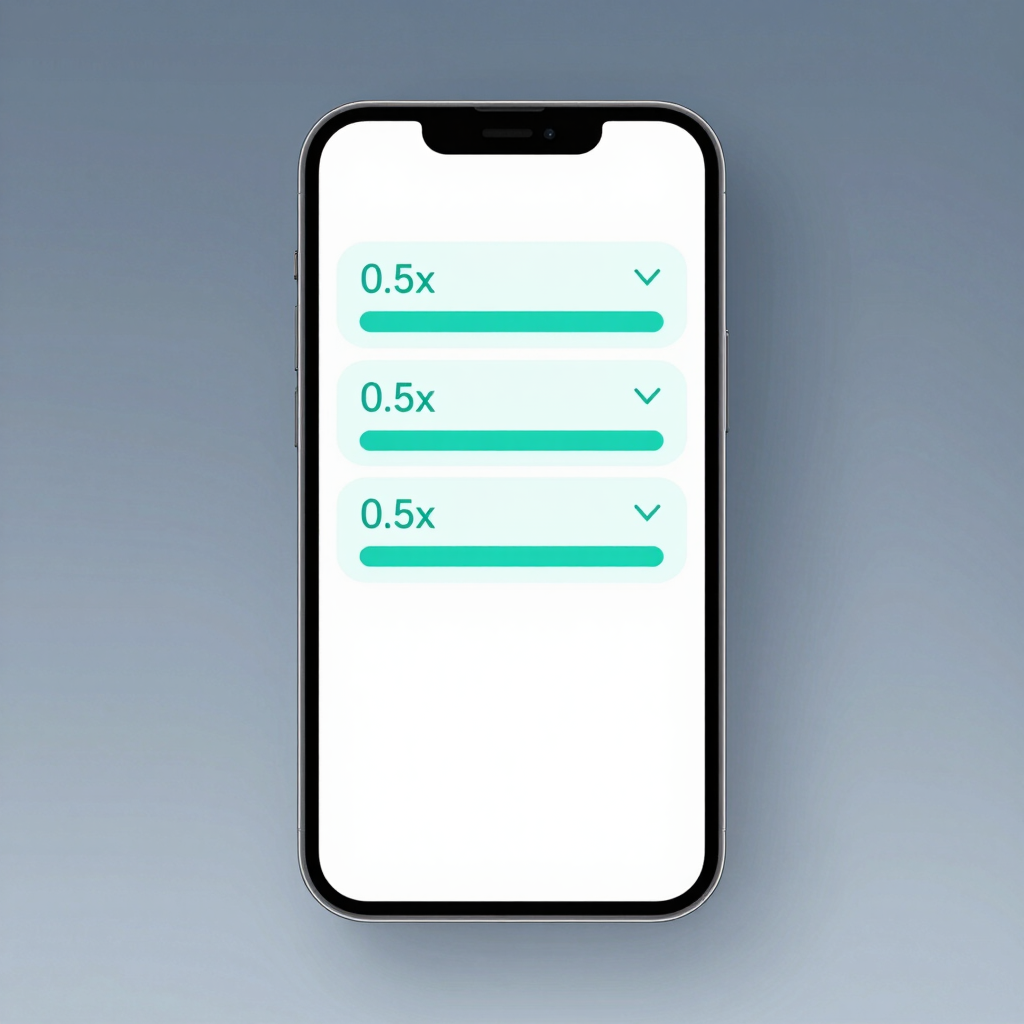
The change applies right away, so no restart is needed. Open the app drawer, switch between recent apps, and pull down the notification shade to compare.
Use the new speed for a week or two before judging it. A change this small can feel strange at first, then feel normal quickly.
If 0.5x still feels slow, try Animation off. It removes the delay entirely, but it can feel abrupt, and a few apps may look jumpy without any transitions.
Some phones are tuned to look best at normal speed, so faster animations can feel jarring. If that is the case for you, set the values back to 1x.
To undo everything, return all three settings to 1x. Switching off the main Developer options toggle at the top of that menu also resets its settings to their defaults.
Some phones, or some users, would rather not open Developer options at all. Many Android versions and skins, including MIUI and HyperOS, also let you reduce or remove animations through accessibility settings without entering Developer options.
Look inside Settings > Accessibility, often under a heading such as Color and motion or Visibility enhancements. Search for an option named something like Remove animations. The exact name and location vary by phone and Android version.
This route is simpler but all-or-nothing. It switches animations down or off rather than letting you choose 0.5x, so it feels more abrupt than the Developer options method.

Faster animations help most when the phone has room to breathe. These habits take a few minutes and are listed from easiest to most involved.
If you clear an app’s cache, tap Clear cache, not Clear storage. Clear storage deletes the app’s data and may sign you out.
Shorter animations change how fast the phone feels, not how fast it works. Opening a heavy game or editing a large video takes the same time as before.
If apps still freeze or reload constantly with animations off, the limit is probably the hardware: the processor, the RAM, or aging internal storage. Cleaner or “RAM booster” apps rarely change that, since Android manages memory itself, and many fill the screen with ads.
A factory reset is the last resort. It can remove accumulated clutter, but it erases everything on the phone, so back up your photos, contacts, and chats first.
It makes the phone feel faster, not process faster. Animations finish sooner, so you wait less between taps. Apps load at the same speed.
It depends on your taste. 0.5x keeps a hint of motion that makes screen changes look natural. Animation off removes the delay entirely but can feel abrupt.
The animation settings are built into Android and you can reverse them any time. Developer options also holds advanced settings meant for app developers, so change only the three listed here.
Make sure you tapped the Build number entry itself, not a nearby line, and that you tapped seven times in a row. Enter your screen lock if asked. On some phones the new menu sits under System or Additional settings instead of the main Settings list.
The three animation settings exist across Android, and the steps are the same in principle. Menu names and locations differ between Pixel, Samsung, and Xiaomi phones, and between Android versions.