Physical Address
304 North Cardinal St.
Dorchester Center, MA 02124
Physical Address
304 North Cardinal St.
Dorchester Center, MA 02124

Every Android phone ships with a settings screen that's switched off by default. A few taps in the right spot reveal it, opening up genuinely useful controls for battery, Bluetooth audio, and screen recording — plus a few switches best left untouched.
Buried inside every Android phone is a full settings screen that Google switches off before the device ever reaches a store shelf. It’s called Developer options, and unless someone has shown you the trick, you could own an Android phone for years without knowing it exists.
It isn’t a secret in the sense of being classified — Google documents it openly for app developers. It’s hidden in the sense that the phone deliberately keeps it out of the normal settings list, and only a specific, slightly odd gesture brings it into view.
Developer options was originally built so app developers could test how their apps behave under stress: slower animations, limited memory, forced GPU rendering, and so on. That’s still its main job.
But several of the toggles inside are genuinely useful to anyone, not just developers. Speeding up sluggish system animations, checking which Bluetooth audio codec your headphones are actually using, or recording your screen with visible tap markers for a tutorial — none of that requires writing code.
Google keeps it hidden mainly to stop people from stumbling into it by accident. A menu titled “Developer options,” sitting in the main settings list, would tempt curious users to flip switches they don’t understand. Requiring a repeated tap on an obscure line item is a simple way to make sure only people who went looking for it can find it.
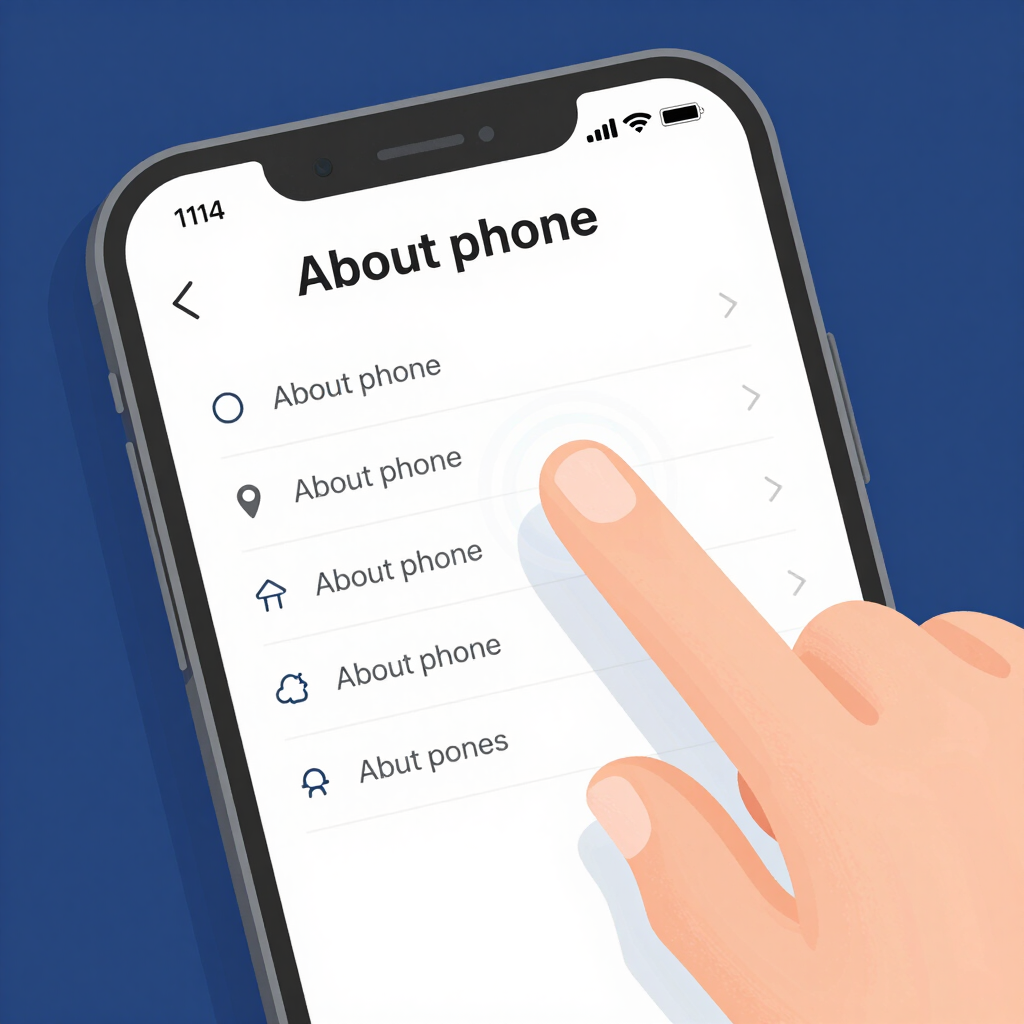
The activation gesture is the same idea on every Android phone, even though the exact screen names shift depending on the brand.
Because Pakistani users run a wide mix of brands — Samsung, Xiaomi and Redmi, Infinix, Tecno, vivo, and Oppo are all common — the exact path varies enough to be worth laying out separately.
| Brand / Skin | Find the build number at | Developer options appears at |
|---|---|---|
| Stock Android, Google Pixel | Settings > About phone > Build number | Settings > System > Developer options |
| Samsung (One UI) | Settings > About phone > Software information > Build number | Bottom of the main Settings list |
| Xiaomi, Redmi, POCO (HyperOS / MIUI) | Settings > About phone > MIUI version or HyperOS version | Settings > Additional settings > Developer options |
| Infinix, Tecno, vivo, Oppo, OnePlus | Settings > About phone > Build number or software version | Settings > System or Additional settings |
If your phone doesn’t match any of these exactly, the pattern still holds: look for a build or software version number under About phone, and tap it repeatedly.
Once the menu is unlocked, it’s a long list, and most of it is genuinely aimed at app developers. A handful of entries are worth knowing about regardless:
A few switches in this menu carry real trade-offs, and Android doesn’t warn you clearly before you tap them.
None of these will permanently damage your phone on their own, but they’re worth leaving at their default state unless you have a specific reason to change them.
If you’d rather not have the menu sitting there, open Developer options and switch off the toggle at the very top of the screen. That hides the menu from the Settings list again. It doesn’t automatically undo other changes you made inside it, so it’s worth double-checking things like USB debugging and animation speed before you hide the menu, especially if you plan to hand the phone to someone else.
Turning the menu on by itself doesn’t change anything about how your phone works. The risk, if any, comes from specific toggles inside it — most of which are safe to leave at their defaults.
No, on its own it doesn’t. Warranty concerns come from actions like unlocking the bootloader or installing a custom ROM, which are separate steps that Developer options only makes possible, not something the menu does automatically.
Simply having the menu enabled has no effect on battery life. Certain settings inside it — like forced GPU rendering or keeping the screen awake while charging — can affect battery use if you leave them switched on.
Not directly. Installing apps from outside the Play Store is controlled by a separate “Install unknown apps” permission per app. USB debugging, inside Developer options, is only needed if you’re installing apps from a connected computer rather than directly on the phone.
Yes. Repeating the same tap-the-build-number steps brings the menu back at any time, and any settings you’d previously changed inside it are typically still there.