Physical Address
304 North Cardinal St.
Dorchester Center, MA 02124
Physical Address
304 North Cardinal St.
Dorchester Center, MA 02124

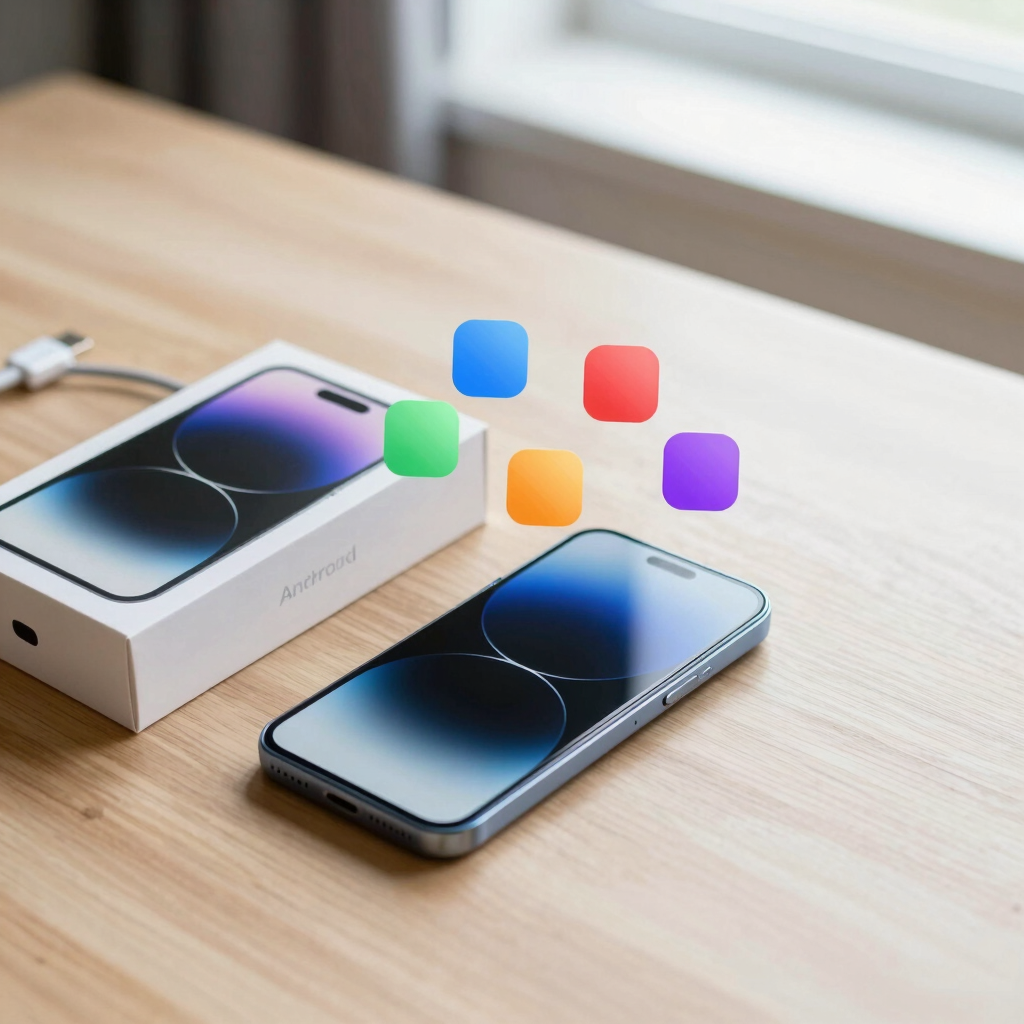
Most new Android owners install social apps and stop there. This roundup covers five lesser-known essentials for security, backups, storage and lost-phone recovery, plus the PTA registration check Pakistani buyers should do before anything else.
Most people set up a new phone the same way. They install WhatsApp, a few social apps and maybe a game, and call it done. The apps that protect your accounts, your photos and the phone itself rarely make the list, because nobody mentions them at the shop.
This roundup covers five of those quiet essentials. Each solves a specific problem: a full storage bar, a hacked account, a lost phone or a lost photo library. Every app below is available on Google Play, and each can be used for free.
Before the apps, one Pakistan-specific step comes first.
In Pakistan, a phone needs to be registered with the PTA to keep working on local networks. Phones bought from official retailers are normally registered already. Phones brought in from abroad, or bought second-hand, may not be.
The check is based on your phone’s IMEI, a 15-digit identifier. Dial *#06# to see it. Then verify its status through the PTA’s official channels, such as its DIRBS service, rather than a third-party site. The PTA’s rules and fees change from time to time, so confirm current details on the official PTA website.
Do this in the first hour. If something is wrong, it is much easier to sort out while you still have the box and receipt.
| App | Best For | Free Option | Platform |
|---|---|---|---|
| Files by Google | Storage cleanup, offline sharing | Yes | Android |
| Bitwarden | Passwords | Yes (paid Premium tier optional) | Android, iOS, web, desktop |
| Google Authenticator | Two-factor login codes | Yes | Android, iOS |
| Find Hub | Finding or locking a lost phone | Yes | Android, web |
| Google Photos | Photo and video backup | Yes (15 GB shared with your Google account) | Android, iOS, web |
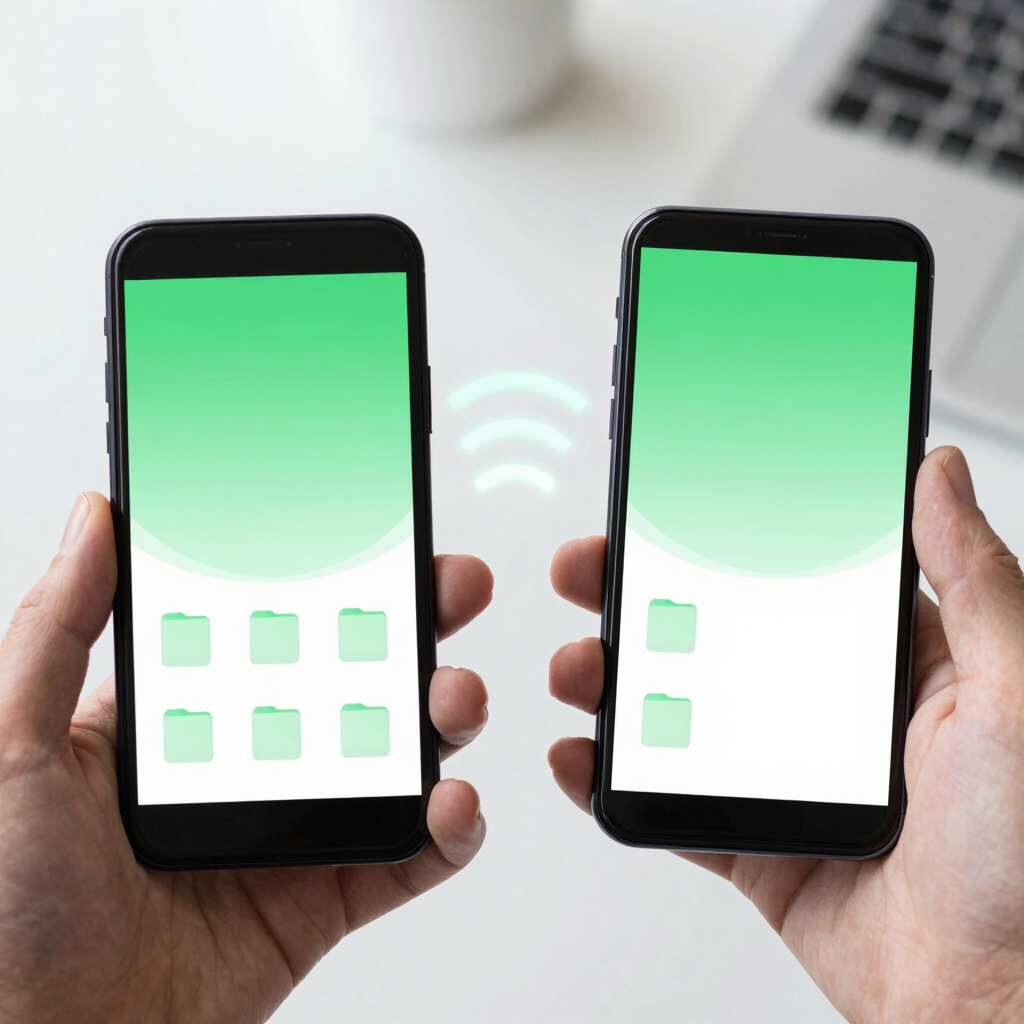
Storage fills up faster than people expect, especially with WhatsApp media. Files by Google shows what is taking space and suggests what to remove, such as duplicate files, old downloads and unused apps. You decide what goes. Nothing is deleted without your confirmation.
Its second job is moving files between phones without mobile data. Using Android’s nearby sharing, you can send photos, videos or even apps to a friend’s phone standing next to you. That matters if your data package is limited.
It also includes a PIN-protected Safe folder for documents you’d rather not leave in the main gallery, like scans of an ID card.
Limitations: Cleanup suggestions are only suggestions. Review them before confirming, particularly with media you haven’t backed up.
Reusing one password across many sites is the most common reason accounts get taken over. A password manager removes the temptation. It creates a strong, unique password for each site and fills it in for you.
Bitwarden is open source, and its free plan covers unlimited passwords across unlimited devices. On Android it integrates with the system’s autofill, so logging in to apps takes a tap. A paid Premium tier adds extras, but the free plan is enough for most people. Check Bitwarden’s own pricing page for the current figure and currency, since local pricing may differ.
Phones also ship with a built-in manager through your Google account. That is a fine start, but a separate manager works across browsers and platforms and keeps your vault independent of any one account.
Limitations: You must remember one strong master password. If you forget it, Bitwarden cannot recover your vault for you, so store it somewhere safe.
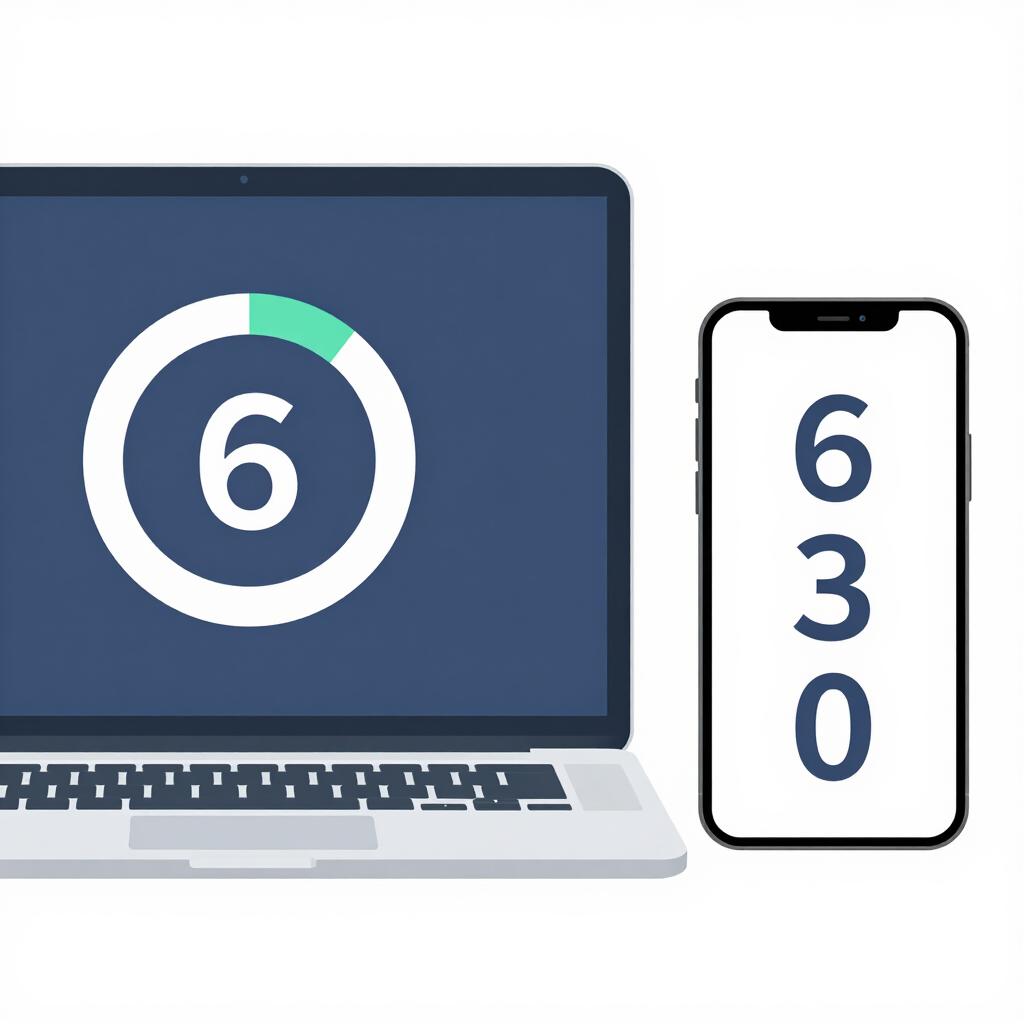
Two-factor authentication, or 2FA, adds a second step after your password. Usually that is a six-digit code that changes every 30 seconds or so. Even if someone steals your password, they can’t log in without the code.
Many accounts offer to send that code by SMS. An authenticator app is generally the safer choice, because a SIM swap or intercepted message cannot hand it over. Google Authenticator generates the codes on the phone itself and works without a mobile signal.
Its codes can be backed up to your Google account, so you won’t lose access if you change phones. Turning that on is optional. Since the codes then sit in your Google account, protect that account well.
Limitations: It is a plain code generator with few extras. If you want more features, other authenticator apps exist, but this one covers the basics reliably.
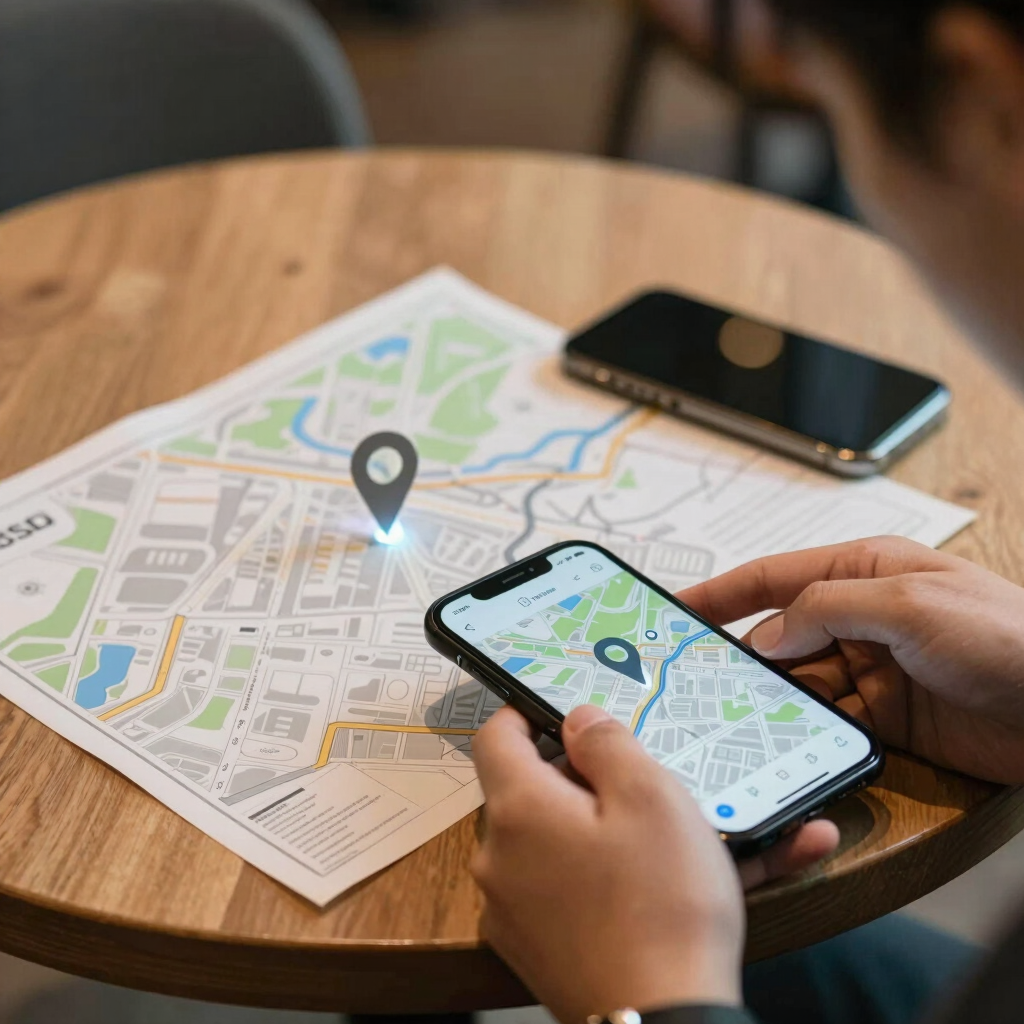
Google’s phone-finding service, formerly called Find My Device, is now named Find Hub. It lets you see your phone’s last known location on a map and make it ring at full volume. It can also lock the screen or erase the phone remotely.
It only works if the phone is linked to a Google account, location is turned on, and the feature is enabled. Check this in your phone’s settings during setup, not after the phone disappears. Settings paths differ between Samsung, Xiaomi and other brands, so search “Find Hub” or “Find My Device” in your settings search bar.
Some tracking features, including locating phones that are offline, may depend on your region and device. Check Google’s official support page to see what applies to your phone.
Limitations: It can’t help if the phone is switched off with no network connection and no support for offline finding. A remote erase also removes your data, so use it only as a last resort.
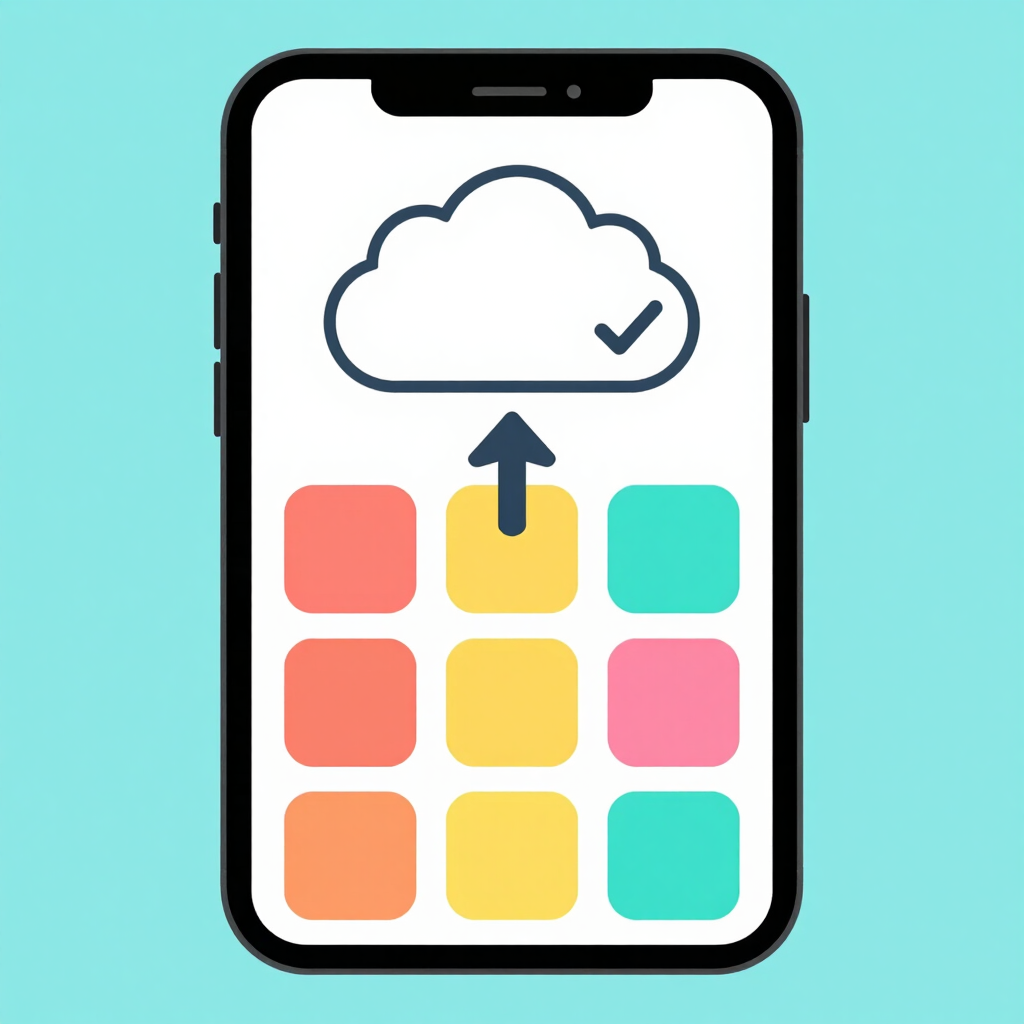
A phone can be replaced. A decade of family photos can’t. Google Photos uploads your pictures and videos automatically when backup is switched on, so a lost, stolen or broken phone doesn’t take them with it.
The free tier is 15 GB, shared across Gmail, Drive and Photos. Heavy video users will outgrow it. Paid storage is available through Google One, and local pricing can differ, so check the app’s own listing for the current figure.
You can choose which folders to back up, for instance leaving out WhatsApp media, and you can set backup to run only on Wi-Fi to protect your data package.
Limitations: Backup is not the same as an archive. Deleting a photo from the app can also delete it from the cloud copy, so check the app’s trash behavior before cleaning up.
Start with the ones that protect you if something goes wrong:
All of this takes well under an hour, and it saves a lot of trouble later.
They come from established developers and are listed on Google Play. Always install from the official Play Store listing or the developer’s own site, and check the developer name before you tap Install.
No. Find Hub and a backup solution matter most for everyone. A password manager and an authenticator matter most if you have many online accounts, such as banking, email and social media.
Mostly not. Google Photos can be set to back up on Wi-Fi only, and the other apps use very little data. Files by Google’s nearby sharing doesn’t use mobile data.
All five are free to start. Bitwarden Premium and extra Google storage are optional upgrades, and prices may differ locally, so check each app’s listing.
Sign in to the same Google account and Bitwarden vault on the new phone. For Google Authenticator, turn on the account backup option first so your codes carry over.