Physical Address
304 North Cardinal St.
Dorchester Center, MA 02124
Physical Address
304 North Cardinal St.
Dorchester Center, MA 02124

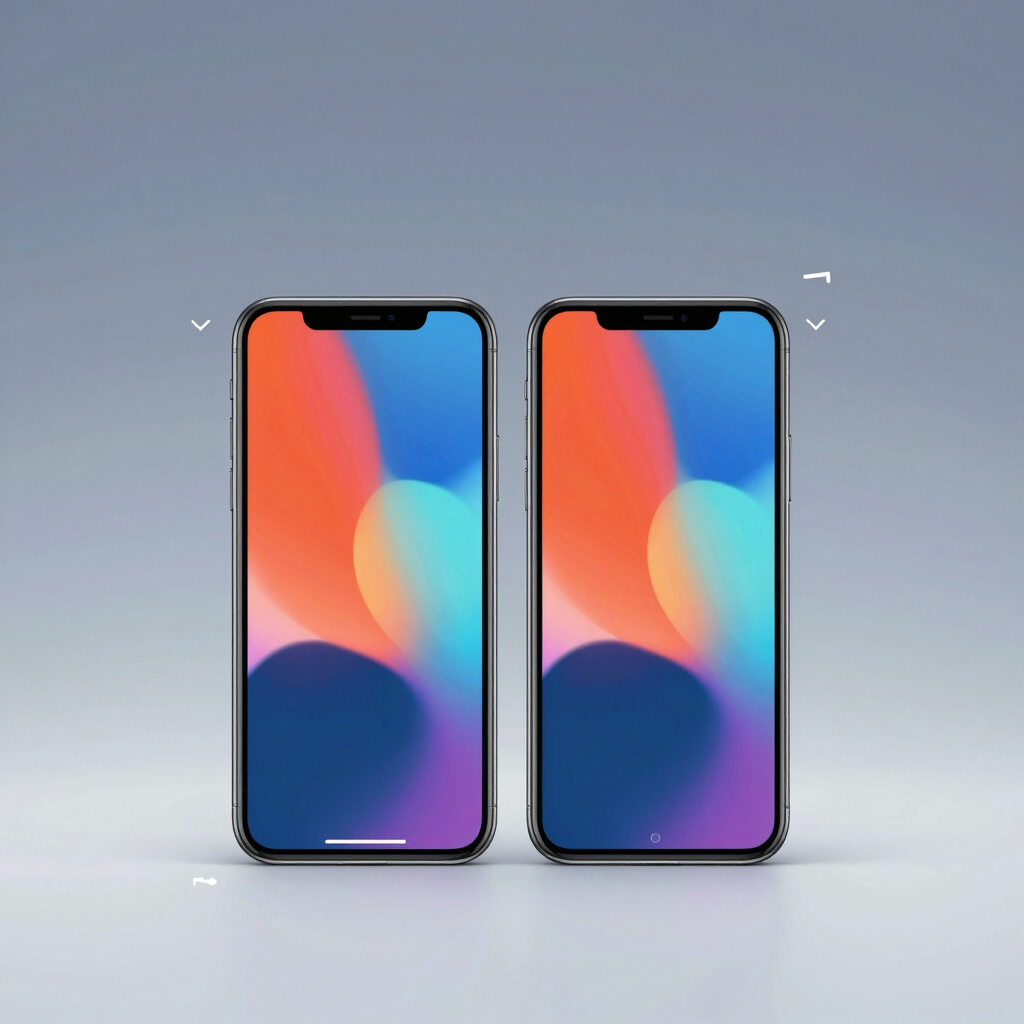
Every Android phone lets you move around in one of two ways. You can swipe, or you can tap three buttons. Neither is wrong, but the right choice depends on your hands, your apps, and how much screen you want. This guide compares both so you can pick one and stop second-guessing it.
| Gesture navigation | 3-button navigation | |
|---|---|---|
| Go back | Swipe in from the left or right edge | Tap the Back button |
| Go home | Swipe up from the bottom | Tap the Home button |
| Recent apps | Swipe up and hold | Tap the Recents button |
| Screen space | Slightly more (thin bar) | A reserved strip for the buttons |
| Learning curve | Needs a few days of practice | Familiar to most people |
| Accidental inputs | Edge swipes can clash with some app menus | Fewer, since the targets are fixed |
| Precision needed | Higher | Lower |
| Customization | Back sensitivity, hint bar (varies by brand) | Button order or side swap (varies by brand) |
| Availability | Android 10 and later | Long-standing option |
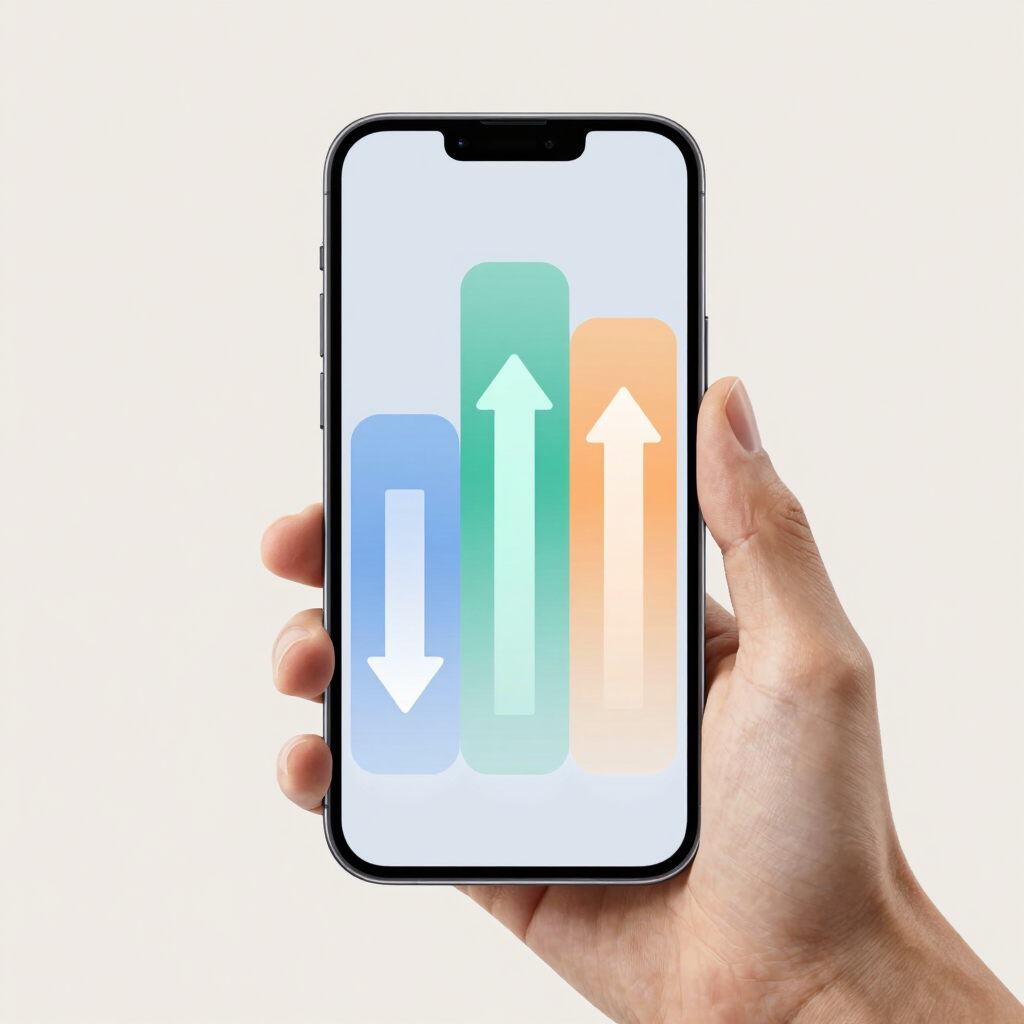
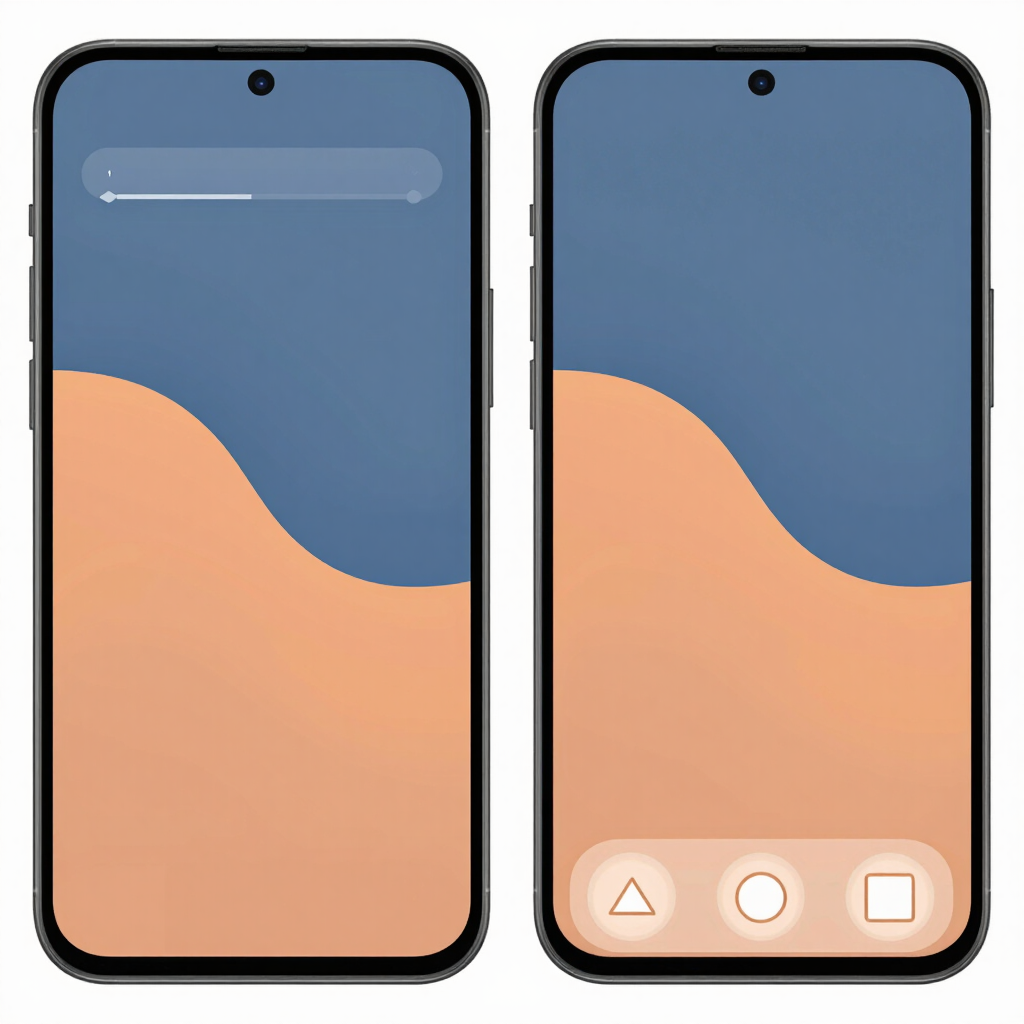
Gestures let you swipe up from the bottom to go Home, swipe up and hold to switch apps, and swipe in from the left or right edge to go back. Android introduced this system with Android 10, after an earlier attempt in Android 9 that mixed buttons and gestures.
The back swipe is the part people notice most. Because there is no Back button, Google added an inward swipe from either side edge. On most phones you can tune how far from the edge the swipe starts. Google’s help page says you can adjust the sensitivity of gesture navigation in settings.
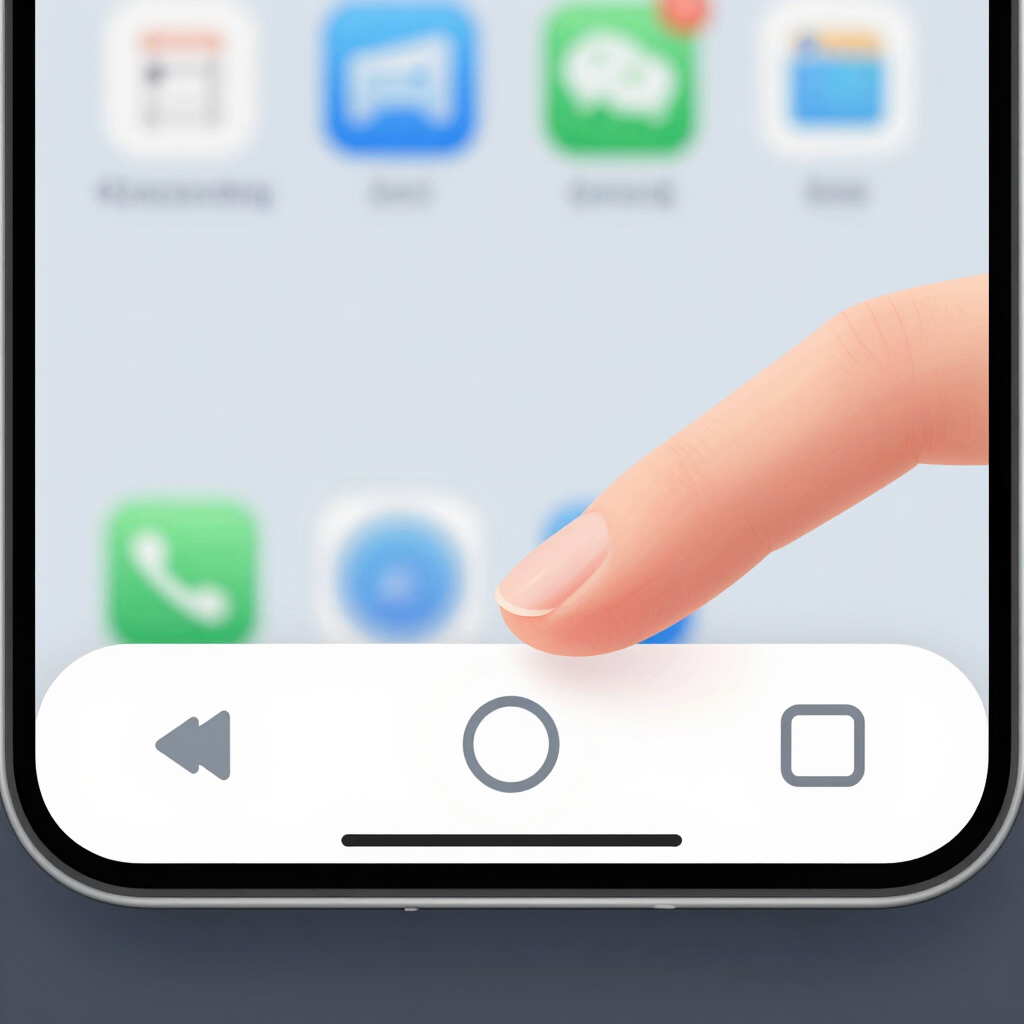
This is the layout Android users have known for years. A bar at the bottom or side of the screen holds dedicated buttons for Back, Home, and Recents. Nothing to learn, nothing to swipe. You tap what you see.
Button order is not identical everywhere. Pixel phones place Back, Home, and Recents from left to right, while Samsung puts Recents first and Back last. If you switch brands, your thumb may need a day to adjust. Some phones let you change this: Google’s help page says you can reorder the buttons in the navigation mode settings.
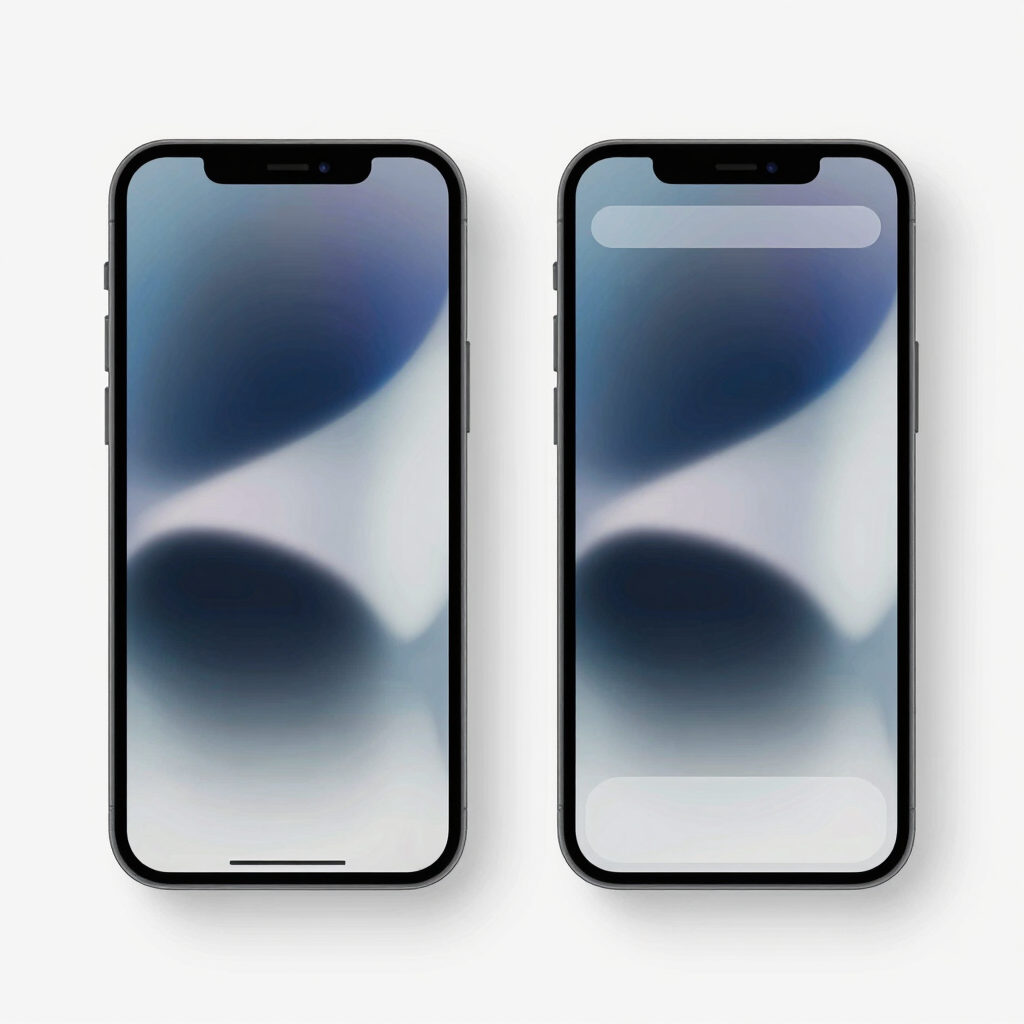
Gesture navigation gives apps a little more room. The gesture bar is much thinner than the dedicated area used by three buttons, so apps can show more content at the bottom. The screen looks cleaner too. Gestures produce a cleaner display, while buttons keep Back, Home, and Recents visible at all times.
The gain is small on most phones. If you care about it, you can go further on some brands. On Xiaomi, for example, you can turn off the white full-screen indicator to free up a bit more space.
Buttons win on day one. Gestures usually win after the habit forms. Gestures can feel faster once you are used to them. Expect an adjustment period, especially with the back swipe and the “swipe up and hold” motion for Recents.
If you already use buttons and feel no friction, there is no urgent reason to change.
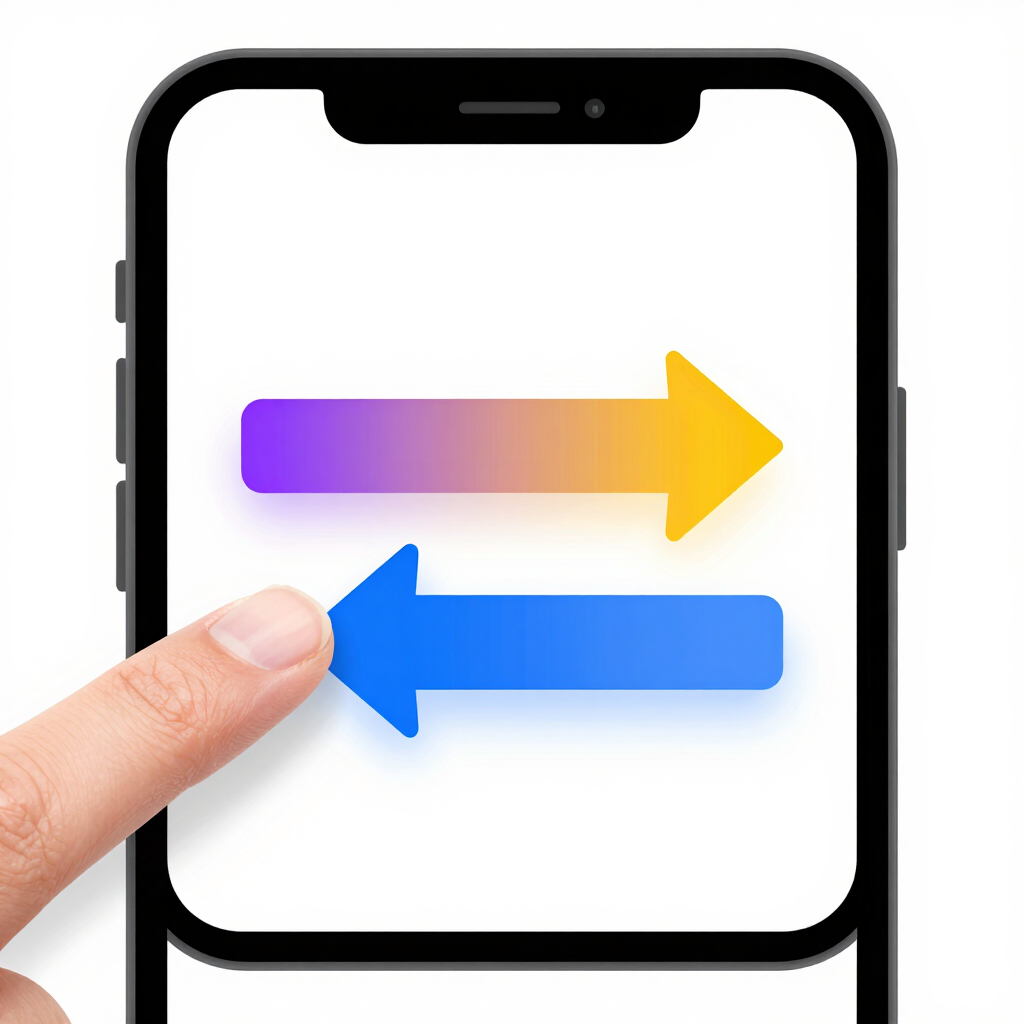
This is the biggest practical downside of gestures. A back swipe from the edge can collide with something the app wants to do there. Android’s own history notes that edge swipes can conflict with apps that use sidebar menus, and apps have an API to opt out of the back gesture in certain areas.
Real-world examples appeared as soon as gestures launched. Users reported accidentally going back while sliding game tiles or swiping to the last panel in a comic app. If this happens to you, lower the back sensitivity. A lower setting requires a firmer swipe, while a higher one makes the back gesture easier to trigger.
Buttons avoid this problem because they sit outside the app’s touch area. Compatibility is one area where gestures can feel less predictable, especially in apps with their own edge swipes, drawers, or carousels.
Gestures ask for precise, repeatable swipes. That is hard for some people. Google’s own help page recommends 3-button navigation for users with limited dexterity or trouble with precise gestures. Older users or anyone who finds swiping tiring may also prefer fixed targets.
Tall phones add another factor: buttons stay at the bottom, while a swipe from the edge can be done with either thumb. Try both while holding your phone the way you normally do.
Predictive back is a feature that previews where the back action will take you. It began as a developer option in Android 13. Newer Android releases enabled it by default, but developers still need to make sure their apps support it.
The shift that matters here is on Android 16. Android 16 extends predictive back to three-button navigation, so long-pressing Back previews the previous screen. If the preview shows the wrong place, you can slide your finger off the button to cancel. This narrows one of the old advantages of gestures.
The preview only appears in apps that support it, so behavior will vary between apps and phones.
The setting lives in different places depending on your phone. If the path below does not match your screen, search for “navigation” at the top of Settings.
| Phone | Where to find it |
|---|---|
| Pixel and near-stock Android | Settings, then System, then Navigation mode (some versions place it under Gestures). Newer versions may show it under Display & touch, then Navigation mode. |
| Samsung Galaxy | Settings, then Display, then Navigation bar. Choose Buttons or Swipe gestures. |
| Xiaomi, Redmi, Poco | Settings, then Home screen, then System navigation. Choose Gestures for full-screen gestures. |
Samsung also offers a choice of gesture layouts. You can pick swipe from the bottom, or swipe from the sides and bottom. Other brands such as Infinix, Tecno, Oppo, Vivo, and Realme follow the same idea, but their menu names differ.
One Xiaomi quirk is worth knowing. On HyperOS, setting a third-party launcher as the default can disable full-screen gestures and push you back to buttons. If your gestures stop working after changing your launcher, that is the likely reason.
Switching does not delete anything. You can go back and forth as often as you like. Google’s Android Help page on navigation modes and Xiaomi’s full-screen gestures guide cover the official steps.
For most people on a current phone, gesture navigation is the modern default worth trying first. Give it a week, set the back sensitivity to suit your grip, and see whether the extra space and smoother flow appeal to you.
Stick with 3-button navigation if swipes feel error-prone or tiring, or if your favorite apps fight the edge gesture. With predictive back arriving on buttons in Android 16, the older style is no longer the awkward choice. It is simply the more predictable one.
Neither is universally better. Gestures give a cleaner screen and can be faster with practice. Buttons are simpler and easier to use precisely. The better one is the one that causes you fewer mistakes.
Yes. The change happens in Settings and does not affect your apps or files. You can test gestures for a few days and return to buttons if they don’t suit you.
Your phone may be reading side swipes in an app as back gestures. Lower the back sensitivity in the gesture navigation settings, or try a different gesture layout if your phone offers one.
Yes. On Android 16, long-pressing the Back button can show a predictive back preview in supported apps.
Google recommends 3-button navigation for users who have trouble with precise gestures, because the buttons are fixed and visible.
On some phones, notably Xiaomi devices running HyperOS, a third-party launcher can disable full-screen gestures. Switching back to the system launcher usually restores the option.