Physical Address
304 North Cardinal St.
Dorchester Center, MA 02124
Physical Address
304 North Cardinal St.
Dorchester Center, MA 02124

Xiaomi, Redmi and POCO phones ship with settings you rarely see on a first tour of the menu. A few of them fix real annoyances: chat messages that arrive late, ads inside system apps, and a battery that ages faster than it should.
This guide covers the ones worth your time. You’ll learn how to stop the system from closing your apps, trim built-in ads, protect your battery, lock private apps and switch on Developer options without breaking anything.
One note first. Menu names change between MIUI 14 and the HyperOS versions. Xiaomi has also announced HyperOS 4, but its published rollout schedule so far covers only China, while a global beta is already running. Your phone may label a setting slightly differently, so use the search bar at the top of Settings if a path doesn’t match.
Messaging apps, alarms and fitness trackers often stop working once the screen turns off. That’s not a bug in the app. Xiaomi’s software is one of the most aggressive at stopping background apps, and a recording app can be stopped soon after the screen goes dark.
The fix is three settings per app: turn on Autostart, set Battery saver to No restrictions, and lock the app in Recents.
Apply this only to apps that truly need to run in the background. Autostart lets apps stay active and use memory and power even when you aren’t touching the phone, so allowing it everywhere will cost you battery.
These restrictions can reset after a reboot or system update, so repeat the steps if the problem returns. The community-run Don’t Kill My App site tracks this behaviour across phone brands.
Sometimes an app sends notifications but never shows its call screen or chat bubble. Xiaomi hides the cause behind an unusual name. MIUI calls the permission “Display pop-up windows while running in the background,” and it does the same job as Android’s “Display over other apps.” Without it, the app can still send notifications but cannot draw anything on top of what you’re doing.
To find it, open Settings, then Manage apps, choose the app, tap Other permissions and enable the pop-up option. The option only appears when an app has requested it, so don’t worry if some apps don’t show it. Some versions also list it under Privacy protection > Special permissions.
Leave it off for apps that don’t need overlays. It reduces unwanted pop-ups.
Ads and recommendations are switched on by default in MIUI and HyperOS, and they’re part of Xiaomi’s business model. You can reduce them, though not always remove them entirely.
These switches affect Xiaomi’s own apps and services. Ads inside third-party apps come from those apps’ developers. System updates can reset some ad settings, so recheck MSA after a major update.
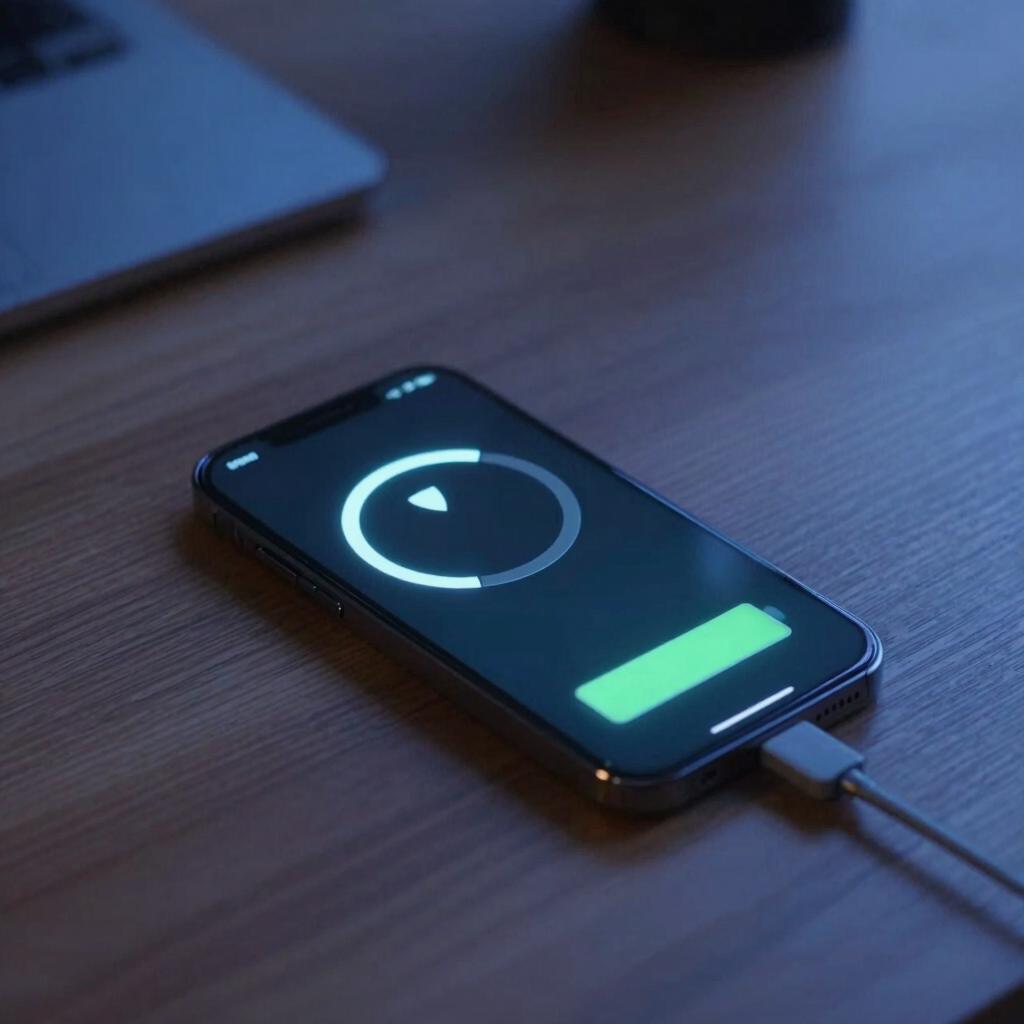
Keeping a lithium-ion battery at full charge for long periods speeds up its wear. Xiaomi includes a setting to limit that. Go to Settings > Battery > Battery protection.
Xiaomi’s support page says Smart charging learns how you charge, stops at 80% when that suits your routine, and slowly tops up to 100% overnight. Some HyperOS versions also offer a fixed 80% limit alongside Smart charge.
What you see depends on your model and software version. One user on a POCO phone reported only Regular and Optimized charging, with Optimized still reaching 100%. If you see no 80% option, use the Smart or Optimized option that your phone offers.
Turn the limit off before a long day away from a charger.
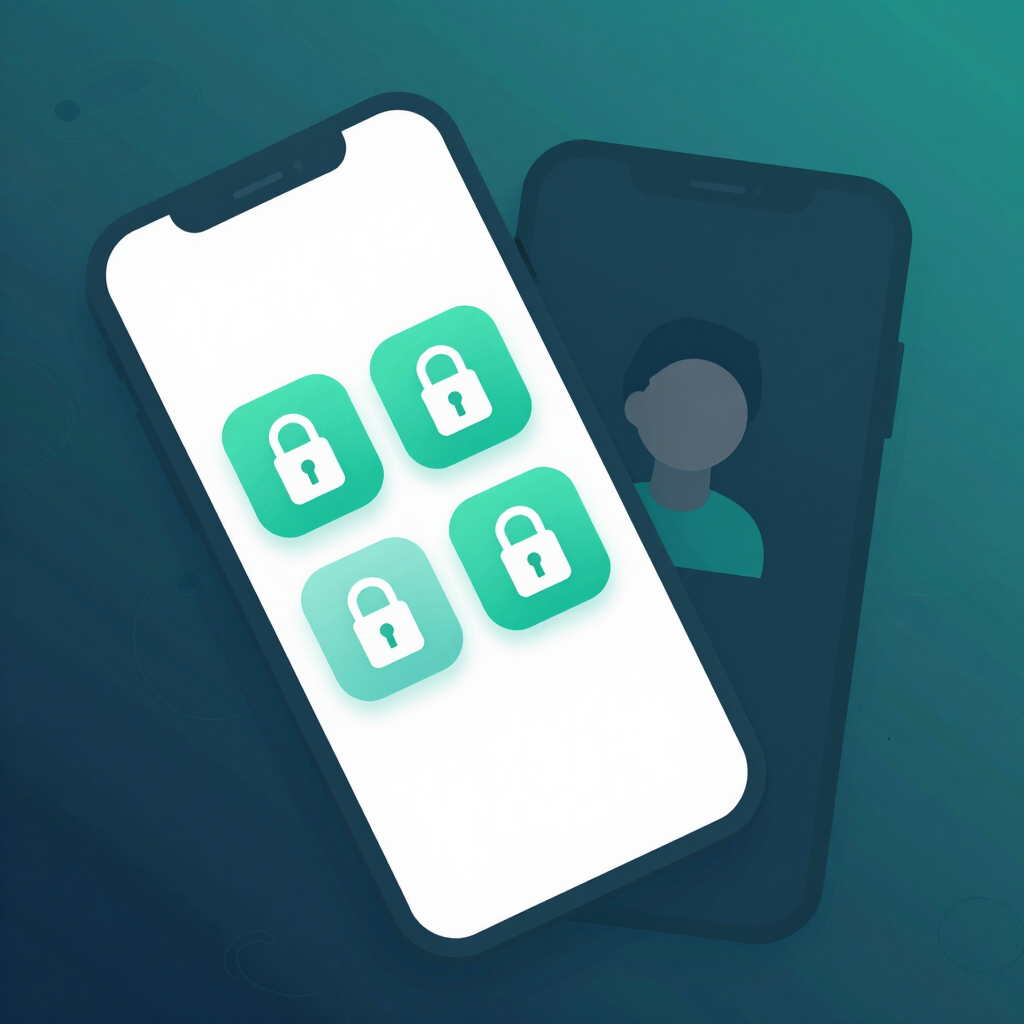
MIUI and HyperOS include built-in tools such as App Lock, Second Space and hidden apps, so you don’t need extra apps to hide things. Each solves a different problem.
| Tool | Where to find it | Best for |
|---|---|---|
| App lock | Settings > Apps > App lock | Requiring a fingerprint, PIN or pattern to open an app |
| Hidden apps | Security app > App lock > Hidden apps | Removing icons from view |
| Dual apps | Settings > Apps > Dual apps | Running two accounts of one app |
| Second space | Settings > Special features > Second space | A fully separate profile with its own apps |
On HyperOS, pinching out on the home screen asks for your credentials before showing hidden apps. Second Space gives the strongest separation, but it uses extra resources and means switching between spaces. Some apps may behave differently inside a second space, so keep important banking apps in your main space unless they work reliably.
App lock is a convenience, not a replacement for a strong screen lock.
Developer options hold advanced switches that most people never need. Turning them on is harmless. Changing unfamiliar switches is where problems start.
Common uses include USB debugging for computer connections and Wireless debugging. Leave everything else alone unless you know what it does. On some older MIUI versions, the MIUI optimization switch in this menu was reported to break background tasks.
| Setting | Where to look | What it does |
|---|---|---|
| Animation speed | Home screen settings > Animation speed | Set to Fast for snappier transitions |
| Double tap to wake or lock | Always-on display & Lock screen | Turns the screen on or off with a double tap |
| Per-app data control | Long-press the app icon > App info > Data usage | Blocks Wi-Fi or mobile data for one app |
| Remove pre-installed apps | Long-press the icon, then Uninstall | HyperOS lets you remove many Xiaomi-branded apps |
Core apps such as the dialer, contacts and Settings stay. If you’re on a limited mobile data bundle, the per-app data switch is a quick way to stop a chatty app from using it in the background.
Yes. The same steps apply to Xiaomi, Redmi and POCO phones on HyperOS, though menu names and options vary by model and version.
Updates can restore defaults. Ad switches and background restrictions are the usual ones to recheck.
Xiaomi has described a heavily reworked interface for HyperOS 4, so some paths may move. If one does, search for the setting’s name in Settings.
It depends on the app. HyperOS handles notifications better than older MIUI, so Autostart is less necessary for many apps. Keep it on for messaging apps you rely on and switch it off for the rest.
Enabling them is safe by itself. Just avoid changing switches you don’t understand.