Physical Address
304 North Cardinal St.
Dorchester Center, MA 02124
Physical Address
304 North Cardinal St.
Dorchester Center, MA 02124

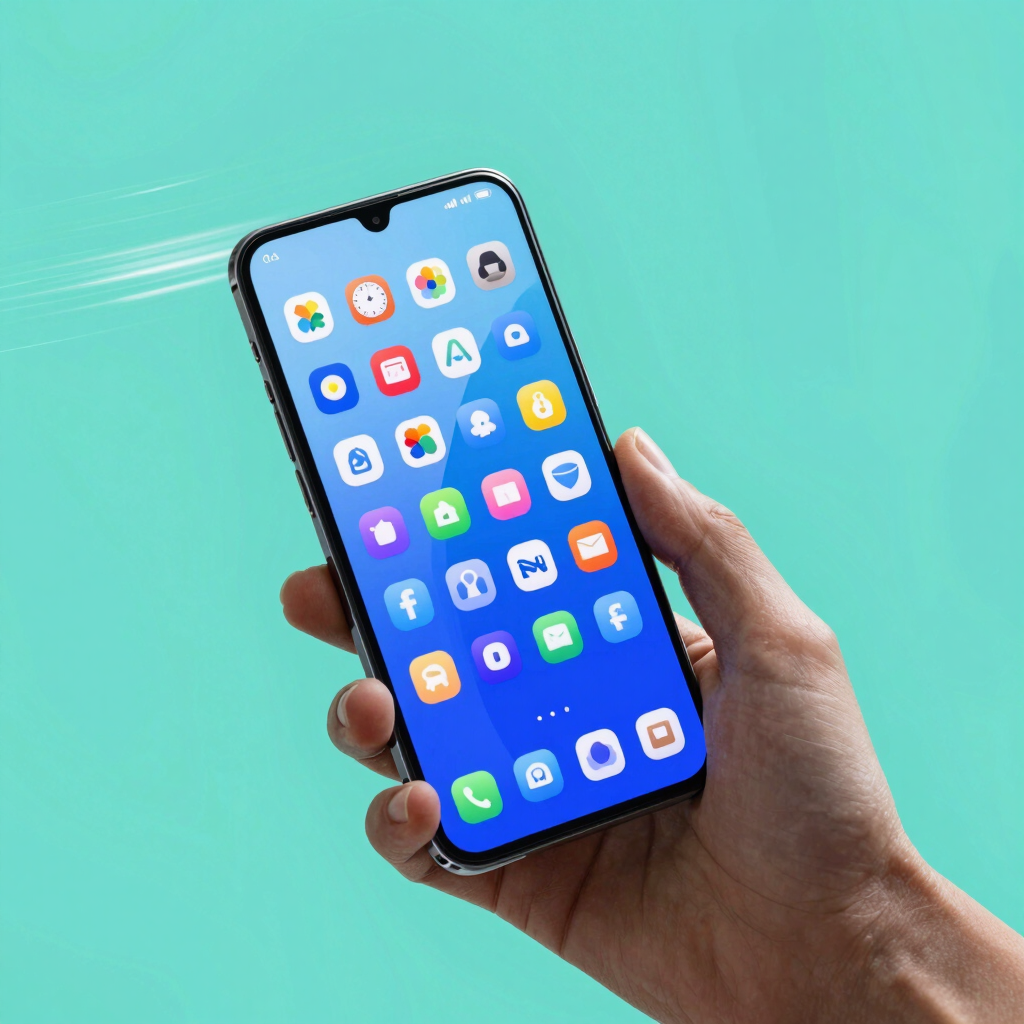
The setting is animation speed. Every time you open an app, switch screens or pull down the notification shade, Android plays a short motion effect first. Shorten those effects or remove them, and your phone feels faster.
The word that matters is “feels.” Your processor, memory and storage stay exactly as they were. What shrinks is the gap between a tap and a finished screen, and that gap is most of what people mean by speed.
This is one of the simplest ways to make an Android phone faster without installing anything. Here is what actually happens when you change it, and how to do it on Pixel, Samsung and Xiaomi phones.
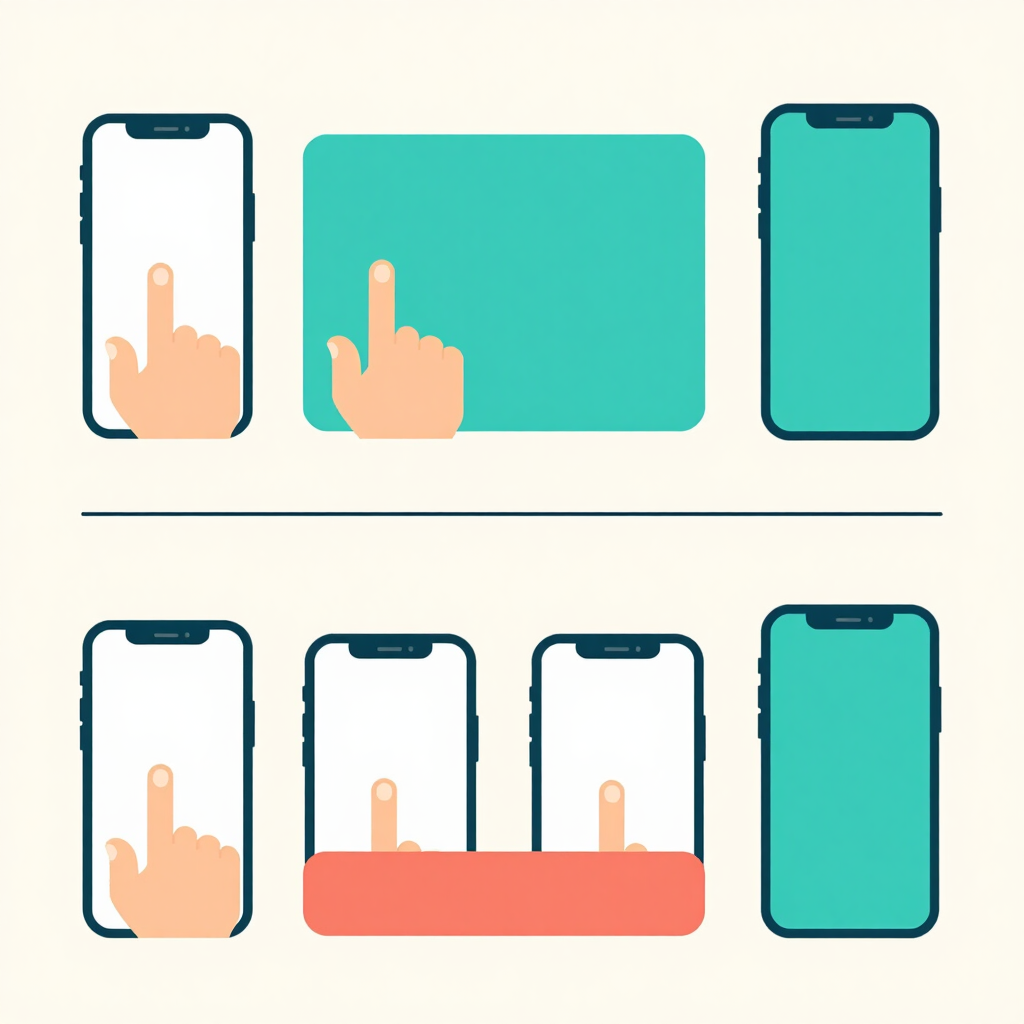
Animations are the fades, slides and zooms Android plays while a screen changes. They look polished, but each one takes a fraction of a second. Over a day of tapping, those fractions add up.
Android controls their speed with three settings. Together they are known as animation scale, and despite the name they control how fast animations play, not how large they are.
| Setting | What it controls |
|---|---|
| Window animation scale | Windows, dialogs and menus opening and closing |
| Transition animation scale | Moving between screens and apps |
| Animator duration scale | Motion inside apps, such as buttons fading in |
Guides draw the line between the first two slightly differently, and you change all three together anyway. Most phones ship with each one at 1x. Lower numbers play faster, and 0.5x cuts every animation to half its normal length.
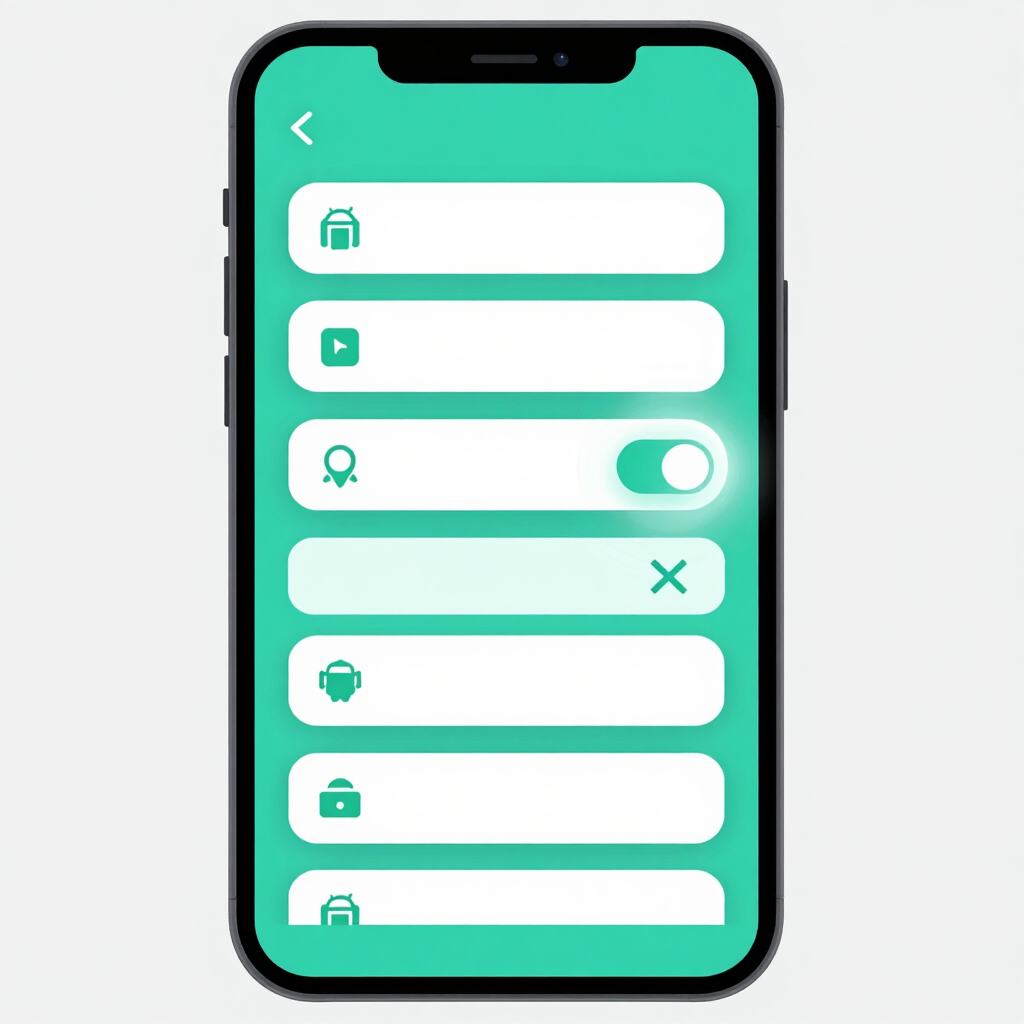
The quickest route is one accessibility toggle called Remove animations. It turns off on-screen animations completely.
Google lists the Pixel route in its Accessibility Help.
The trade-off is that this is all or nothing. Screens jump instantly with no gentle in-between, and Samsung users have pointed out that the toggle has no half-speed option. If you would rather shorten animations than remove them, use the Developer options method below. It also works on Xiaomi and other phones where you can’t find the toggle.
Developer options is a hidden menu built for app testing. You only need three entries from it, so leave everything else alone. Samsung notes that using Developer options isn’t supported and may affect phone performance.
The exact path depends on your brand:
Developer options appears in a different place on each phone:
Once inside, scroll to the Drawing section, where the three animation settings sit.
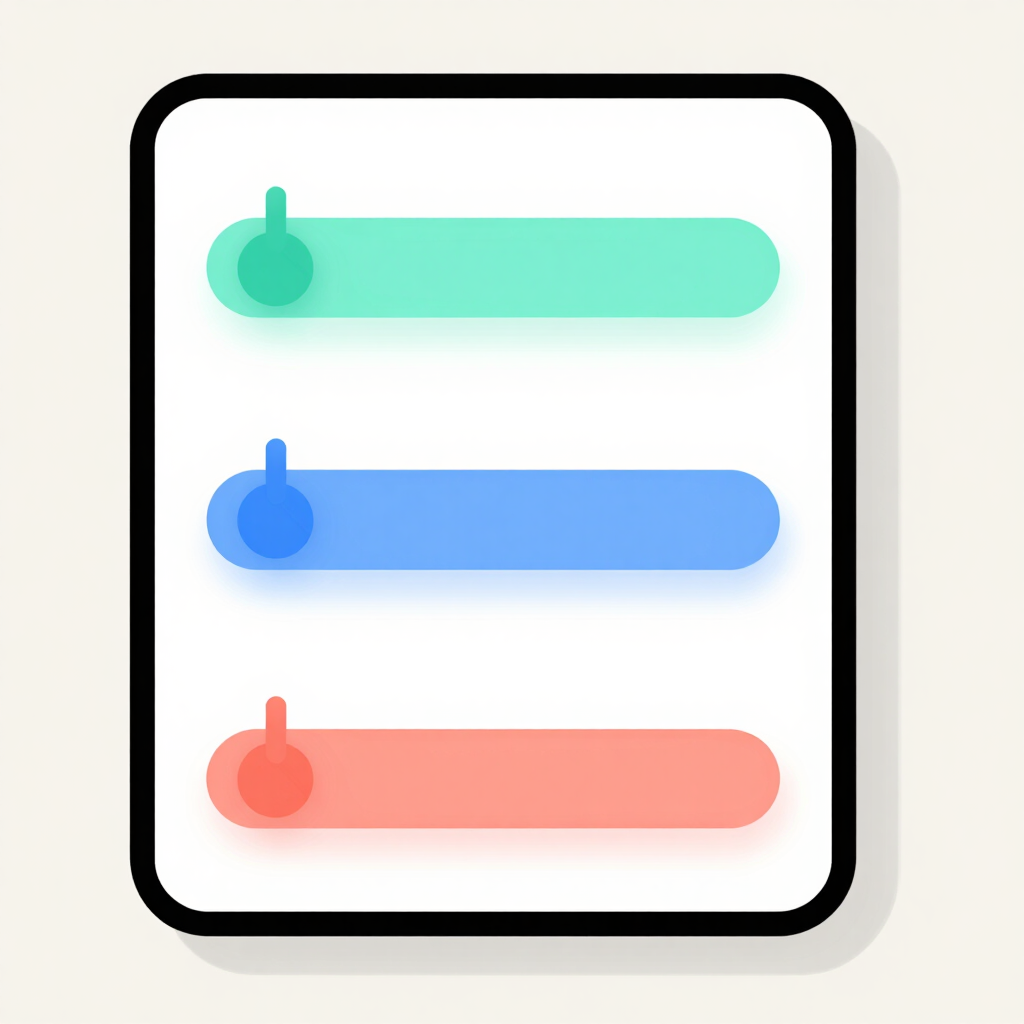
The change applies immediately, so you can leave the menu and try it straight away. Each list also offers an Animation off option if you want to go further.
Menus open sooner, apps appear sooner and screens switch sooner. That is the whole effect.
| Option | What you notice | Suits you if… |
|---|---|---|
| 1x (default) | Standard motion | You like the polished look |
| 0.5x | Animations take half as long | You want a quicker feel that still has motion |
| Off | Screens switch instantly | Speed matters more than looks |
Nothing else changes. It is not a magic fix for an old phone. The hardware does the same work either way, so app load times and gaming performance stay where they were. If an app takes a full second to load, a shorter animation can’t shorten that wait.
Animation changes won’t help a phone that is genuinely struggling. These are the next-easiest checks:
It makes the phone feel faster, not process faster. The processor does the same work, but you spend less time watching motion effects before a screen appears.
Start with 0.5x. It keeps a little motion, so app launches still look natural. Choose Off only if you want instant switching and don’t mind how abrupt it feels.
Yes. These are standard entries in Developer options and you can revert them at any time. The rest of that menu is meant for testing apps, so leave other options alone.
It stays hidden until you tap Build number seven times. On Samsung, Build number sits under Software information. On Xiaomi HyperOS, tap the OS or HyperOS version instead.