Physical Address
304 North Cardinal St.
Dorchester Center, MA 02124
Physical Address
304 North Cardinal St.
Dorchester Center, MA 02124
Most Galaxy owners use maybe a third of what One UI can actually do. The rest sits a few menus deeper than Samsung’s default screens ever show you — not hidden on purpose, just not front and center. Here’s what’s actually worth digging out, and exactly where to find it.
Samsung ships One UI on everything from budget Galaxy A phones to folding flagships, sold in dozens of markets with different carriers and languages. To keep the out-of-box experience simple for a first-time buyer, most of the deeper controls stay tucked away rather than cluttering the main Settings screens. That’s good for beginners, but it means genuinely useful features go unused for years.
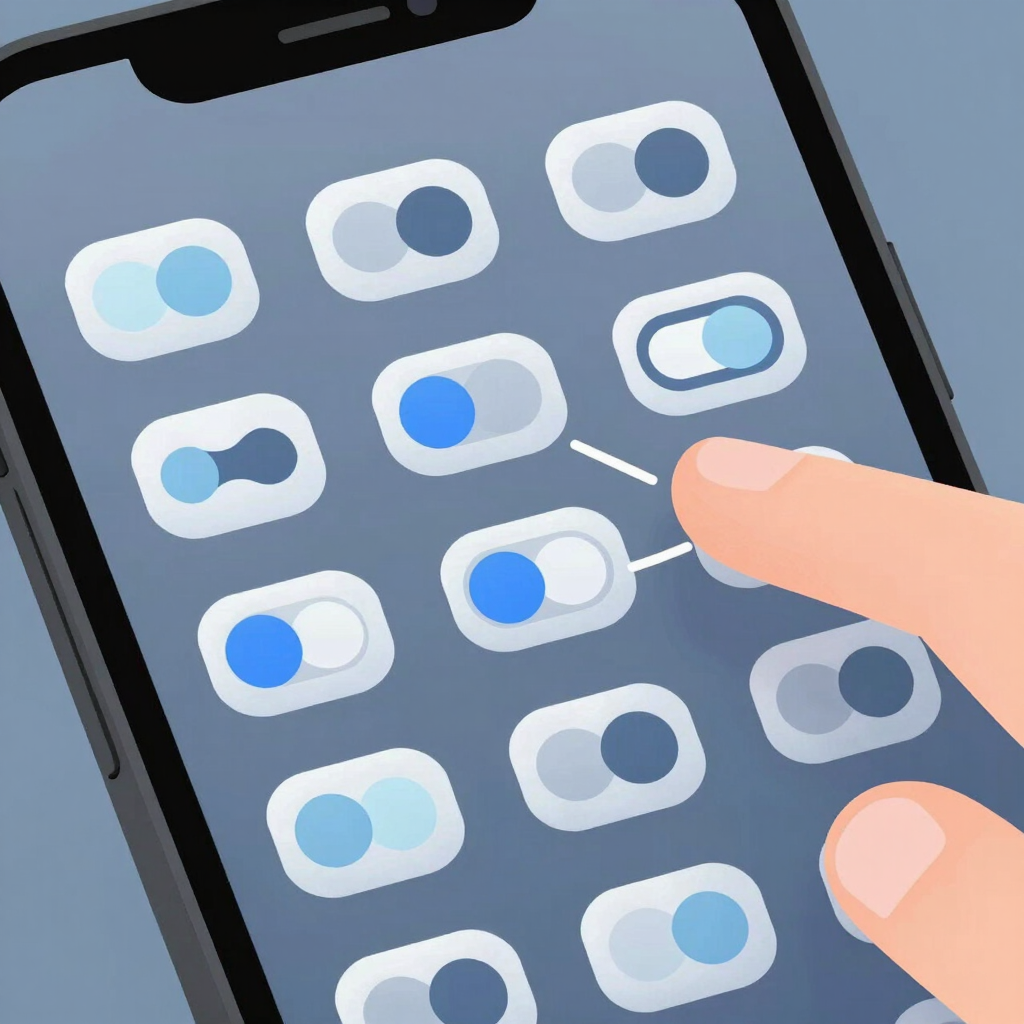
The panel you swipe down to reach is one of the most editable parts of One UI, and almost nobody touches the default layout.
If your device has a curved or supported flat-edge display, Edge panels give you a pull-out drawer of shortcuts most people never turn on.
If your home screen feels crowded, you likely don’t need more space — you need fewer widgets taking up separate slots.
It’s a small trick, but it turns three widgets’ worth of screen space into one.
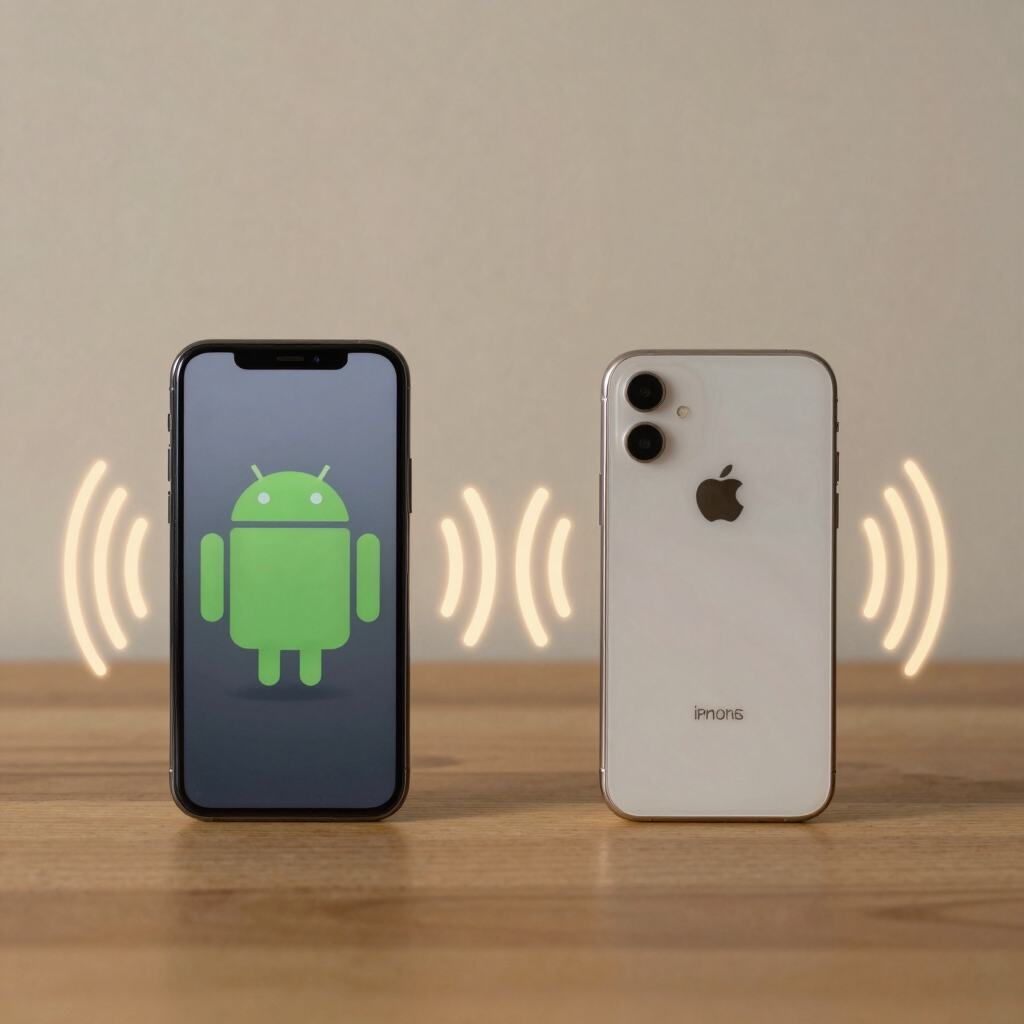
Quick Share has quietly gained the ability to talk to nearby Apple devices, which used to require a cable, an email, or a third-party app.
Both devices need to be reasonably close, with Bluetooth and Wi-Fi turned on, for this to work reliably.
Full-screen recordings often capture things you’d rather not share — notification banners, private app content, or your entire home screen.
This is worth using for tutorials, bug reports, or anything you plan to share publicly.
One UI includes a genuinely useful privacy tool that most people never open outside of a security scare.
RAM Plus has been around for a few generations of One UI, but plenty of Galaxy owners still don’t know it exists.
It won’t turn a budget phone into a flagship, but it noticeably reduces how often apps reload from scratch.
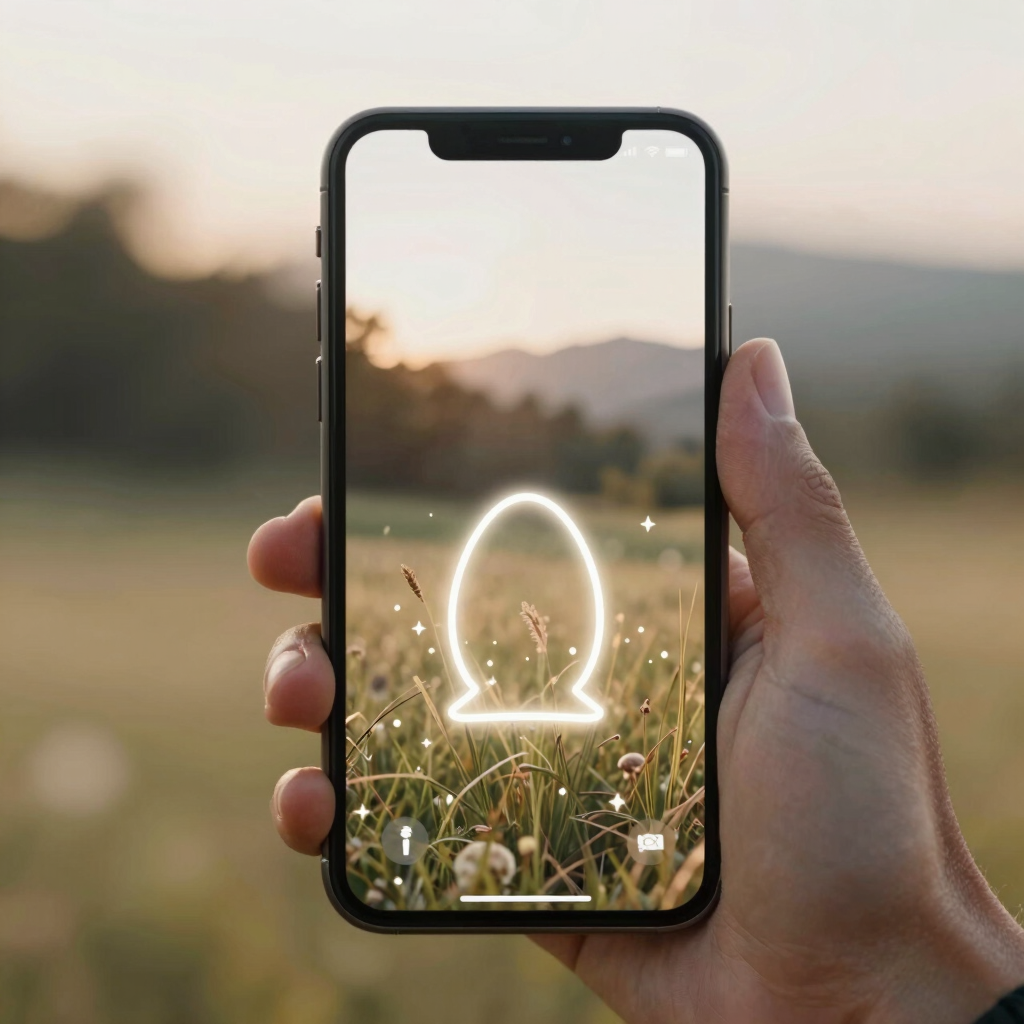
On supported devices, Samsung’s Gallery app includes AI-assisted editing tools that go well beyond basic cropping.
These tools depend heavily on your specific device, a signed-in Samsung account, and sometimes an internet connection, so availability varies by model.
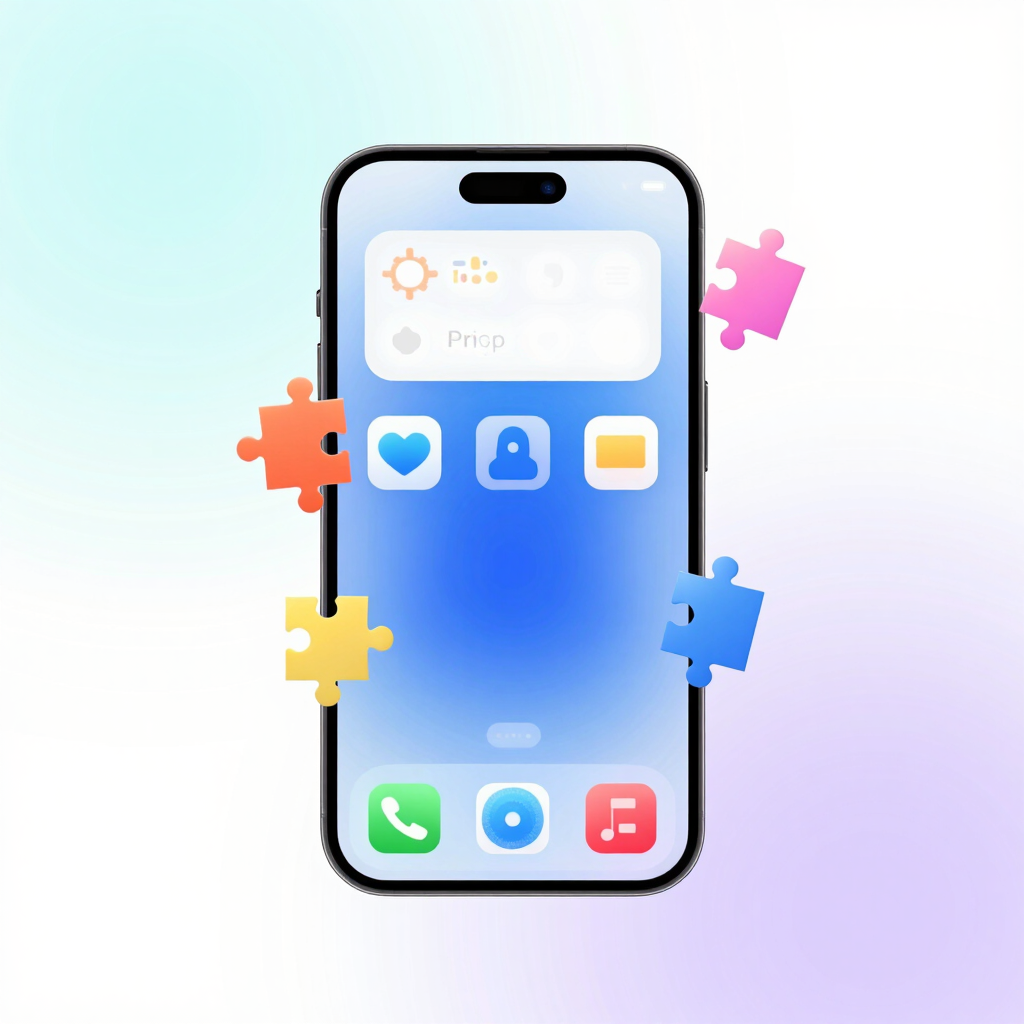
If Settings still doesn’t give you enough control, Good Lock is Samsung’s own answer to that. It’s a free, official app made by Good Lock Labs in partnership with Samsung, and it’s been available through the Galaxy Store for years — since late 2025 it’s also listed on the Google Play Store, so you don’t need to hunt for it.
Good Lock works as a hub for optional modules, each one focused on a different part of the interface: things like customizing your lock screen widgets, adding extra multitasking gestures, or tweaking how the camera app behaves. Nothing installs automatically — you pick only the modules you actually want, which keeps the system light.
Not every feature here behaves the same way on every phone. Newer software — like the One UI 8.5 update — brings features that simply aren’t on older devices yet, and budget Galaxy A models don’t always get feature parity with flagships on day one. Galaxy AI tools in particular are limited to specific devices and a defined list of supported languages, and Urdu currently isn’t one of them — most of these AI features run in English rather than in a local language, which is worth knowing before you plan on using them daily.
Most apply broadly across recent Galaxy S, Z, and Tab devices, and increasingly to Galaxy A-series phones. Software version matters more than device tier — check Settings > About phone > Software information to see your current One UI version.
No. Quick Panel customization, Edge panels, widget stacks, RAM Plus, and the privacy dashboard all work offline with no AI involved. Only the AI photo editing and Creative Studio tools need a supported device and sometimes a connection.
Many will, though some newer additions roll out to flagship models first. Good Lock, for example, supports select A-series models running One UI 6 or later.
No. apkboy.online is an independent publication and isn’t affiliated with, endorsed by, or operated by Samsung Electronics or Google. Samsung, Galaxy, and One UI are trademarks of their respective owners, referenced here for identification purposes only.
No. Both are official, first-party Samsung tools built into or distributed for One UI, not third-party modifications, so using them as intended doesn’t void your warranty.